
Group by Channel, Gateway & Country
Overview
The “Group by Country” feature in SyncTools allows you to configure your chart of accounts and tax details based on the primary country in which your business operates.
This feature enables SyncTools to optimize settings and financial reporting tailored to the specific requirements of your e-commerce and accounting needs for that country.
Step 1: Login in and Accessing Settings
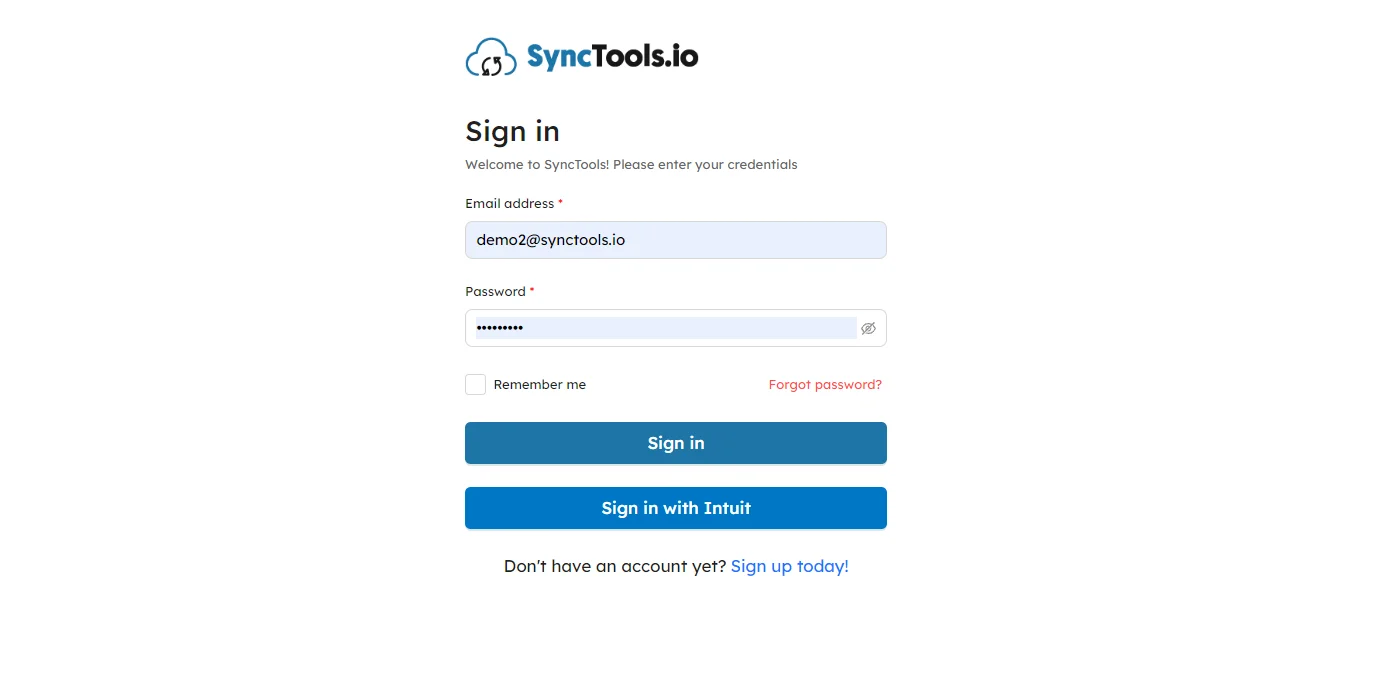
Once you log into SyncTools, you’ll land on your Dashboard, which gives you a quick snapshot of your synced orders. To start setting things up, look at the profile name on the left and click on “Settings.”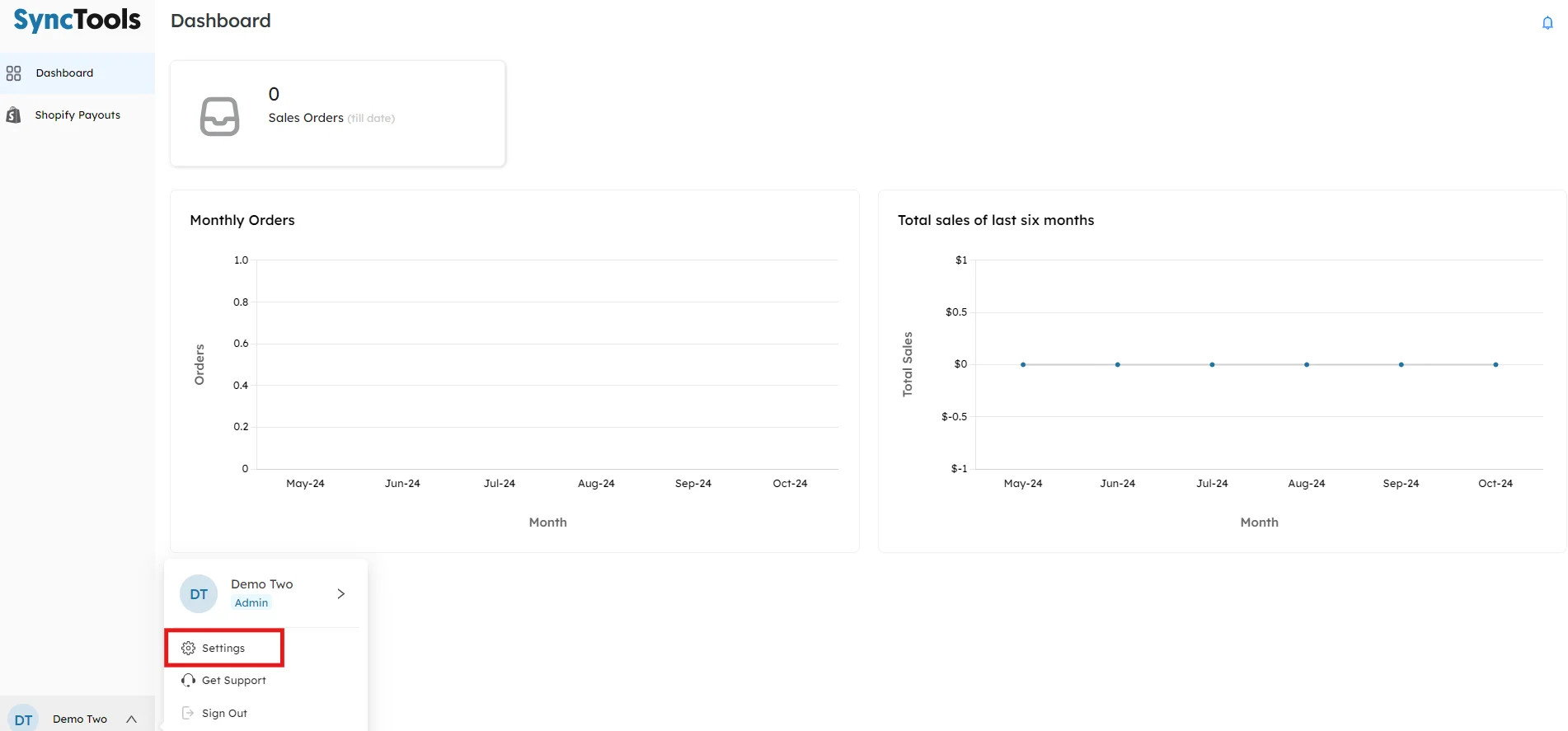
Step 2: Choosing your Country of Operations
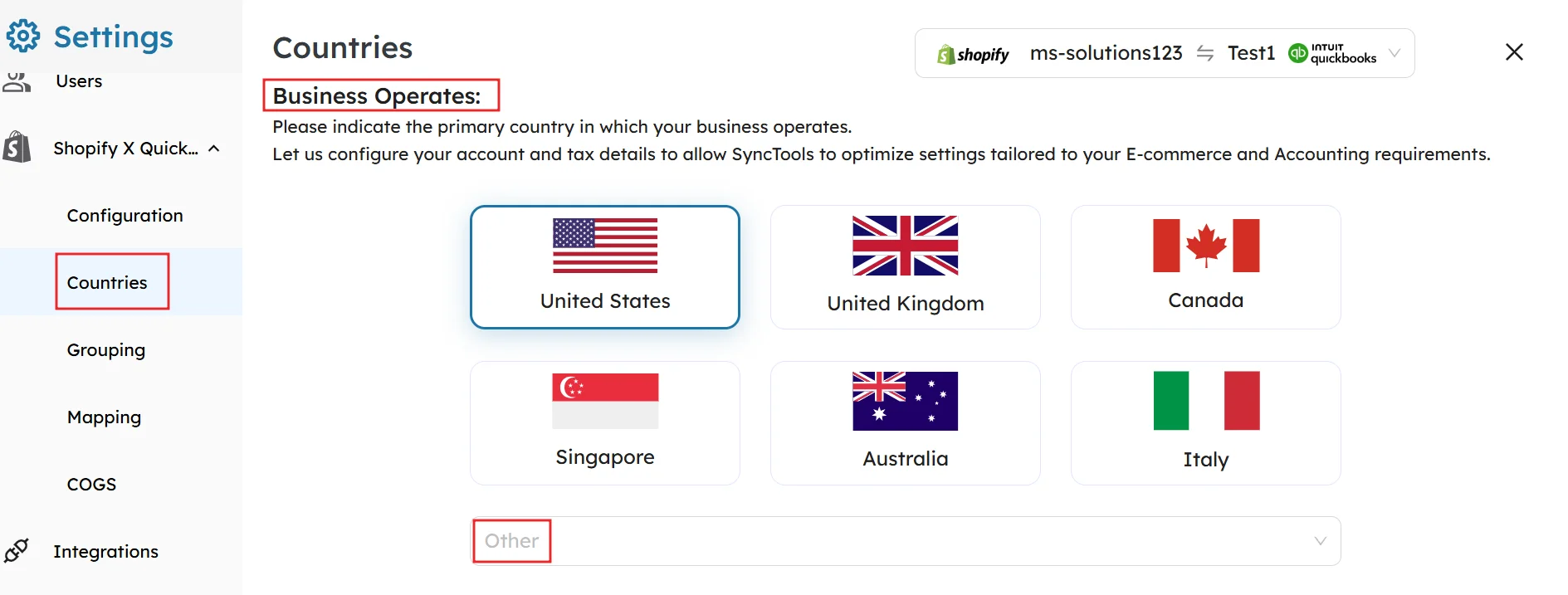
Selecting the Primary Country of Operation
Under the “Business Operates” section, click on the country flag icon to select the primary country in which your business operates.
The available options include the United States, United Kingdom, Canada, Singapore, Australia, and when you click on “Others” you will get options of several other countries.
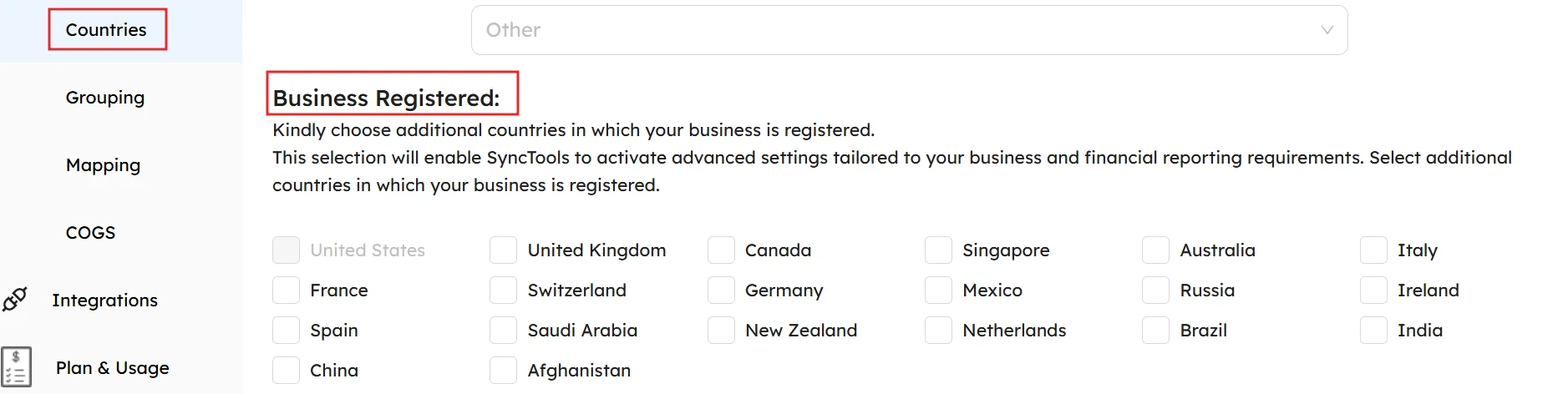
Kindly choose additional countries in which your business is registered.
This selection will enable SyncTools to activate advanced settings tailored to your business and financial reporting requirements. Select additional countries in which your business is registered.”
Group by Country Feature

This screen allows you to configure how Shopify sales are grouped by SyncTools for Invoice creation in Xero.
The Default Grouping option categorizes transactions based on the country, ensuring accurate and region-specific financial reporting.
Key Features
Default Grouping: Group by Country
-
SyncTools automatically groups Shopify transactions by the registered operating country.- In this example, transactions are grouped under United States.### Why Use Grouping by Country?
-
Automatically segregate sales, refunds, and taxes by country for compliance with regional tax laws (e.g., VAT, GST, Sales Tax).
Benefits for the User
- Transactions are automatically categorized by region, reducing manual effort.
- No need for manual categorization of transactions by country—SyncTools does it for you.
How to Configure
- Check the box for Group by Country to enable regional grouping.
- The selected country (e.g., United States) will determine the grouping criteria.
- Click Save to apply the configuration.
- SyncTools will now post Shopify transactions to Xero accounts based on the selected country.
How It Reflects in Xero
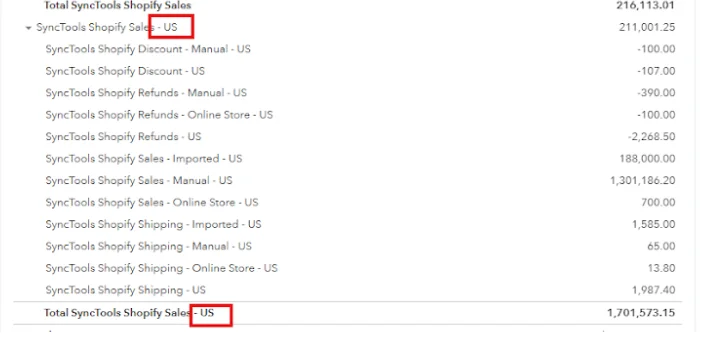 Example: A Shopify store operates in two countries: the United States and the United Kingdom.
The store syncs its transactions to Xero using SyncTools, with Group by Country enabled.
In Shopify
- US Sales: $5,000 (with $300 in Sales Tax).
- UK Sales: £4,000 (with £800 in VAT).
In Xero
US transactions are grouped under accounts like SyncTools Shopify Sales - US and SyncTools Shopify Sales Tax - US.
UK transactions are grouped under accounts like SyncTools Shopify Sales - UK and SyncTools Shopify VAT - UK.
Group by Gateway

Purpose
- Allows grouping of transactions based on different payment gateways available in Shopify
- Helps track sales by payment method
How to Configure
-
Navigate to Settings > Grouping- Under “Default Grouping,” locate “Group by Gateway”- Check the checkbox to enable gateway-based grouping
-
Select the payment gateways you want to track:
Manual
- Gift card
- Apple pay
- G-pay
- Shopify payments
- Bogus (if applicable)
How It Works
- Each payment gateway is automatically grouped into its respective category, such as Shopify Payments or Gift Cards.
- SyncTools maps transactions to separate accounts in Xero for better tracking and reconciliation.
Why Use Grouping by Gateway?
-
Payment gateways often charge specific fees (e.g., processing fees). By grouping transactions, these fees are easier to track and reconcile.
-
Provides visibility into how much revenue is generated through each gateway.
How It Reflects in Xero
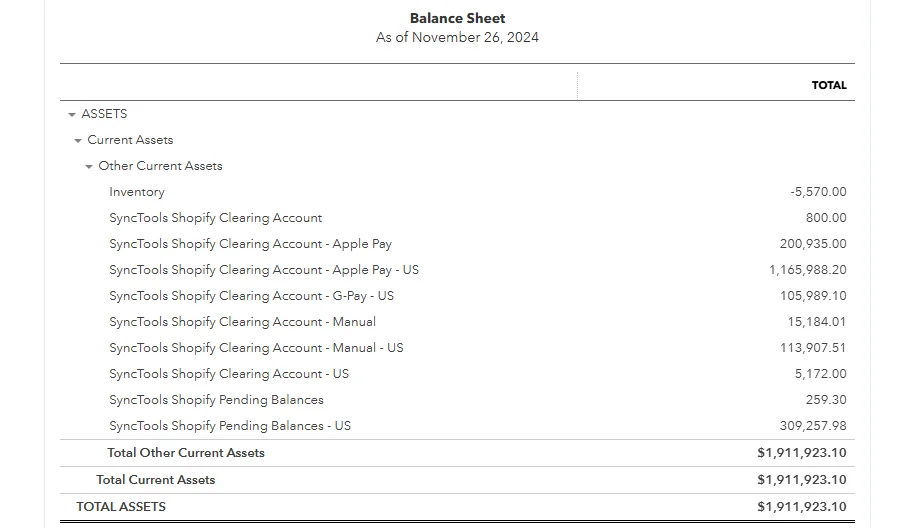
When Group by Gateway is enabled in SyncTools, Shopify transactions are mapped and reflected in Xero under clearing accounts for each payment gateway.
This setup provides clear visibility into the funds received and pending for each payment method.Example### Shopify Transactions:
- Total Sales via Shopify Payments: $3,000
- Total Sales via Apple Pay: $1,000
In Xero:
- Shopify Payments Sales: $3,000 (deposited into Shopify clearing account).
- Apple Pay Sales: $1,000 (deposited into Apple Pay account).
- Processing fees for each gateway are recorded separately, simplifying reconciliation
Advanced Grouping: Group by Channel for Sales Transactions
With this option enabled, SyncTools groups sales, refunds, and other transactions based on the specific sales channels used in Shopify. Examples of sales channels include: Facebook & Instagram, Online Store, etc.

Purpose
- Enables organization of sales data by specific sales channels in Shopify
- Provides better visibility into performance across different sales channels
How to Configure
- Navigate to Settings > Grouping- Scroll to the “Advanced Grouping” section
- Locate “Group by Channel”- Check the checkbox to enable channel-based grouping
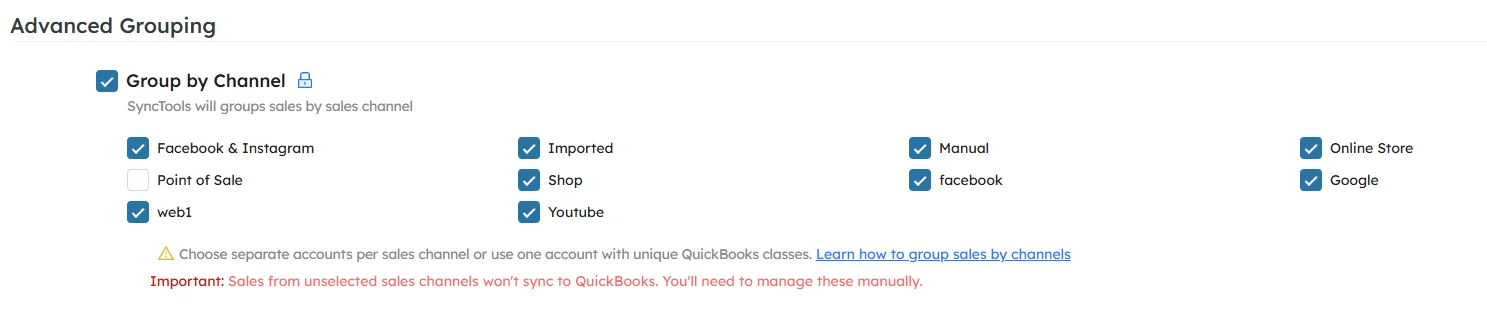
How it Works
- Choose the sales channels relevant to your business.
- Transactions from selected channels are mapped to separate accounts in Xero.
- Sales from unselected channels won’t sync and must be managed manually.
Why Use Group by Channel?
- Provides a clear breakdown of revenue by channel.
- Each channel is mapped to its own account in Xero, ensuring clean and structured financial reporting.
How it Reflects in Xero
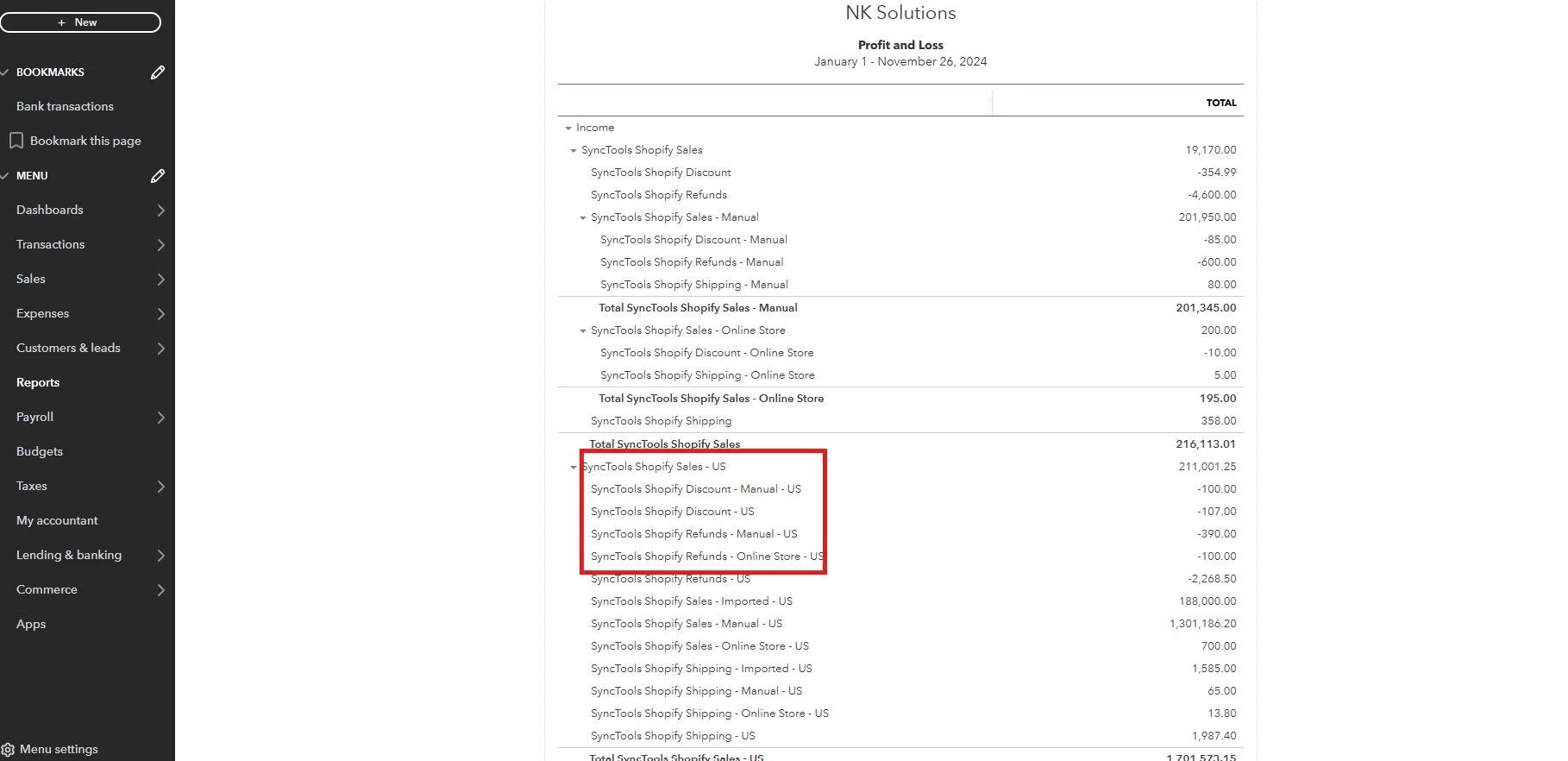
The Profit and Loss Report in Xero shows a detailed breakdown of sales, discounts, and refunds grouped by sales channels, providing valuable insights into financial performance.Example:#### Shopify Transactions:
- Online Store: $10,000
- Facebook & Instagram: $4,000
- Point of Sale (POS): $3,000
Was this article helpful?