
Install Connector
Learn how to integrate QuickBooks with Linnworks using SyncTools seamlessly. Follow our detailed instructions for installing the QuickBooks Connector app from the Linnworks app store and setting it up hassle-free. Get your orders synced effortlessly and efficiently.
All the emails (Confirmation + User information) will be sent to the email that is registered in the Linnworks account. If the Linnworks email is of another team member, you will need them to forward two emails to you.Note: Direct Sign-up from the website is not available. So the user must install it from the Linnworks app store.
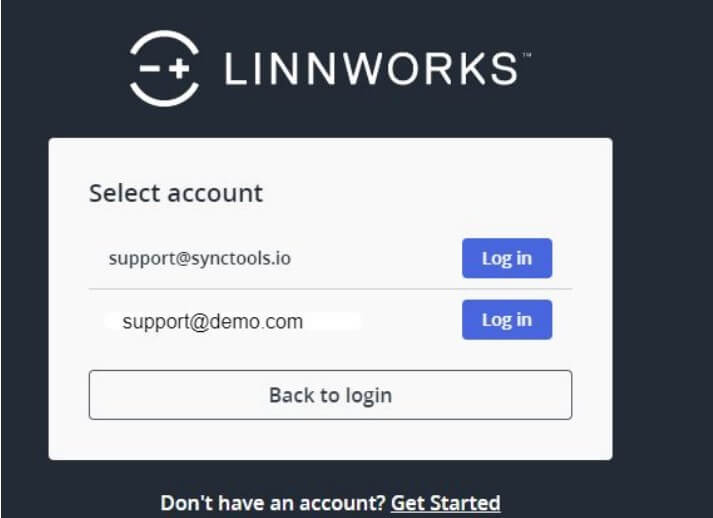
- Please select the Linnworks account from which you want to sync the orders.
Steps to install SyncTools app
Open and Log in to Linnworks
-
Click on Application > Application store
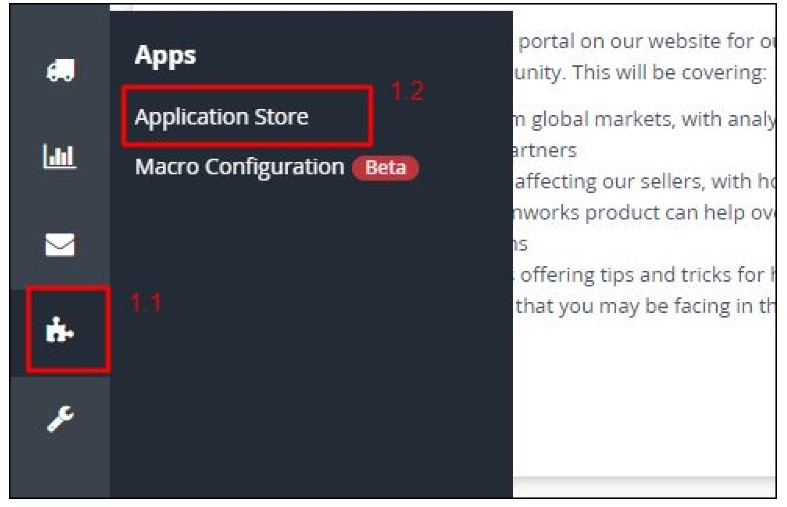
-
Search for QuickBooks connector
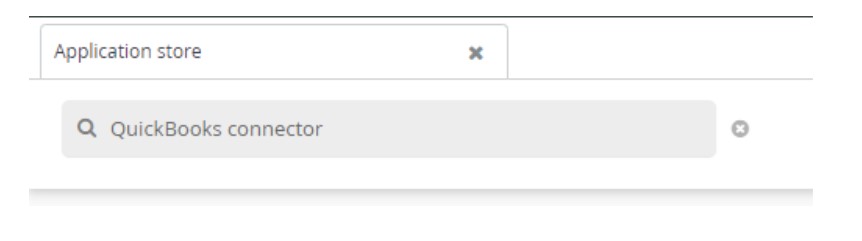
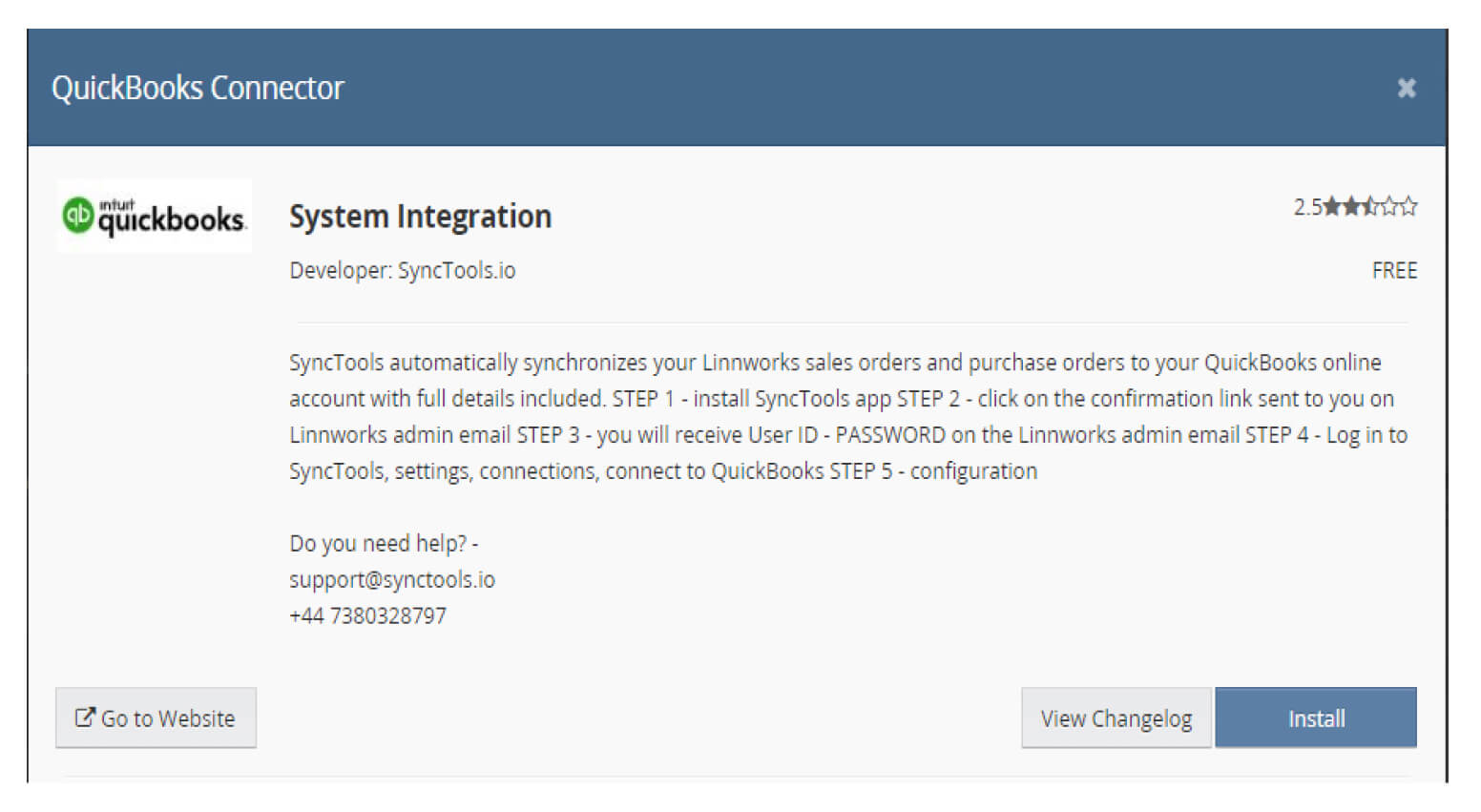
- Click on the Read More button of QuickBooks connector tool
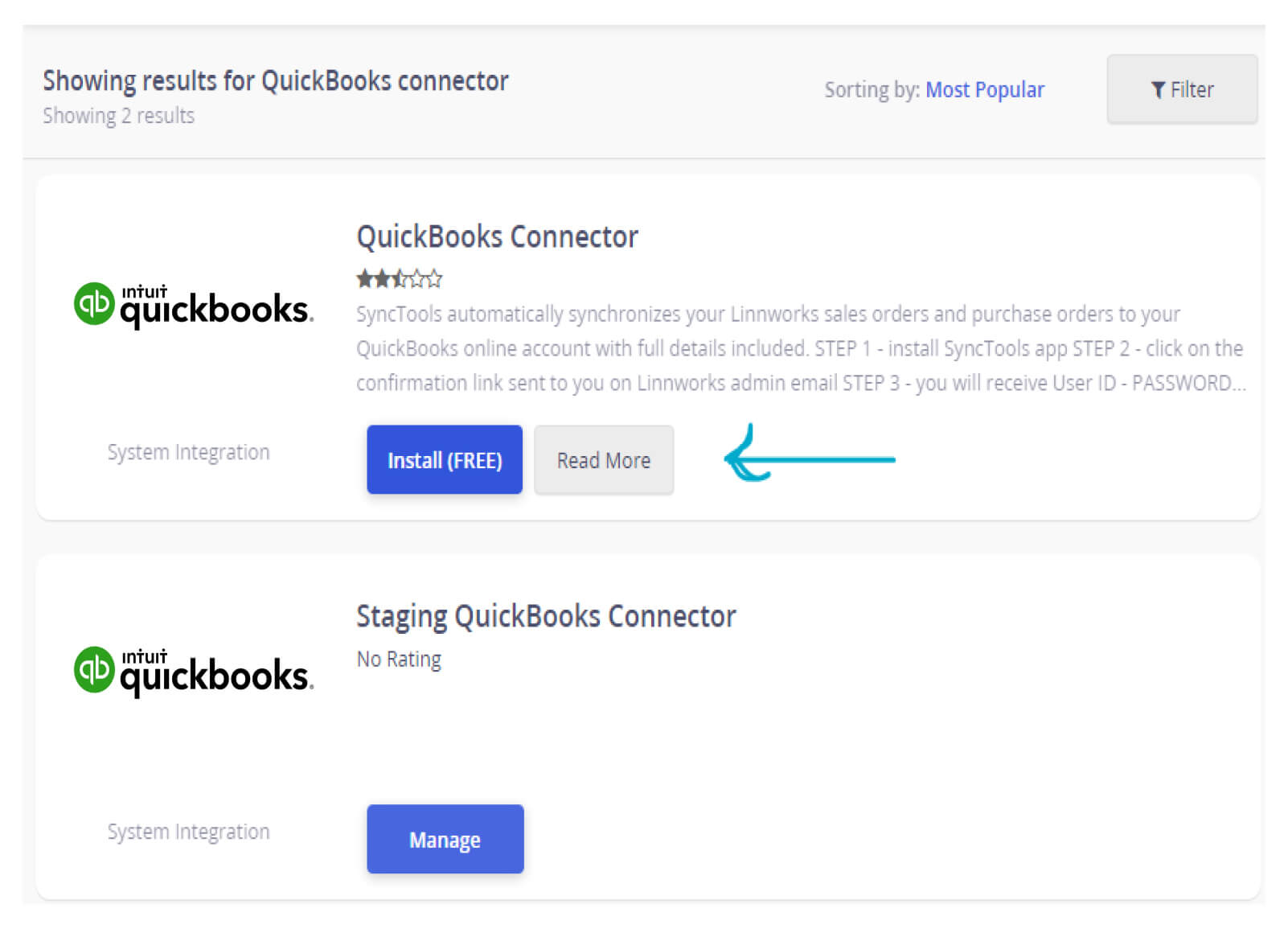
- Make sure the developer name is SyncTools.io and click on install button
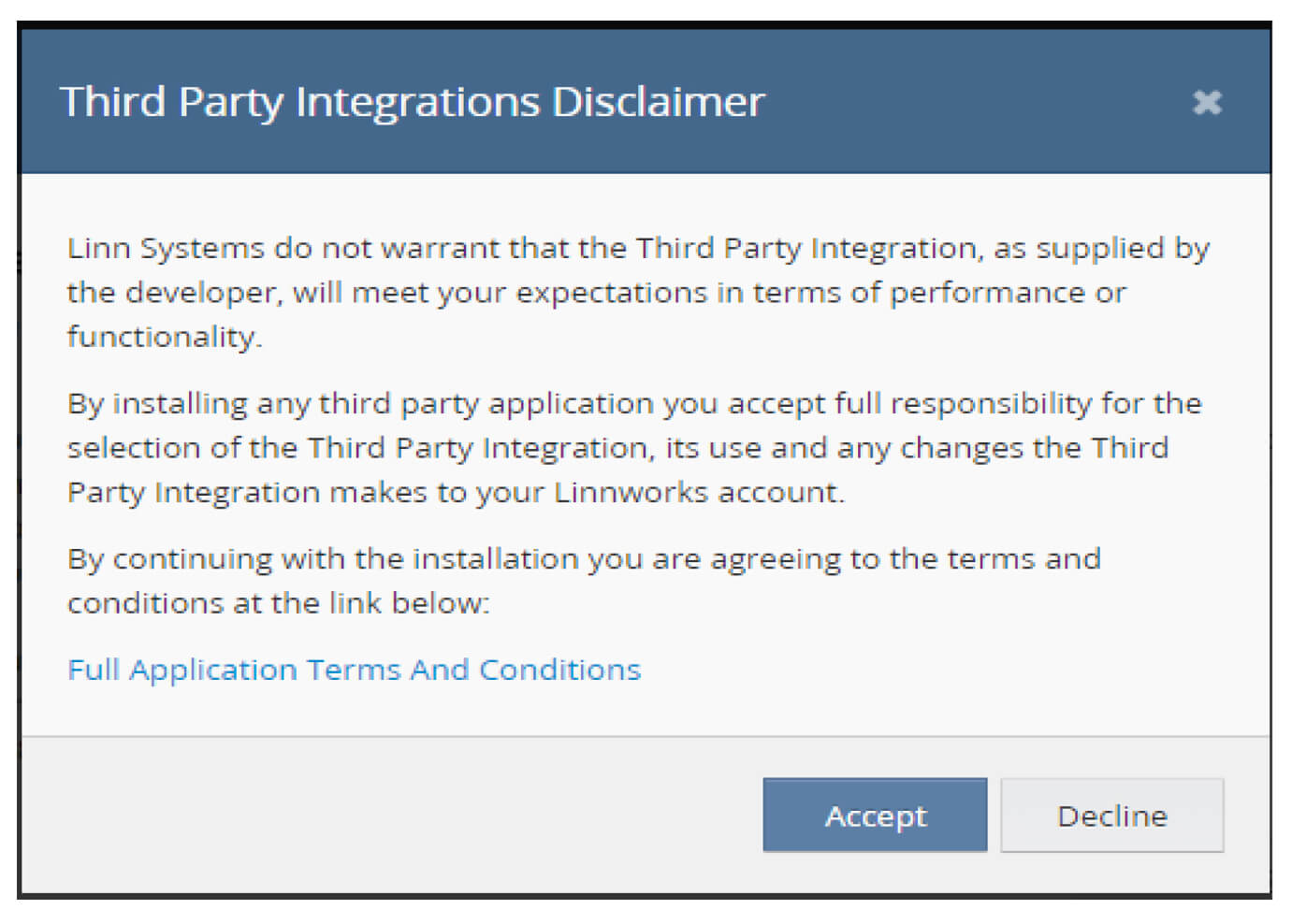
- Accept Third Party Integrations Disclaimer
- Click on the Next button
- Click on the Install button
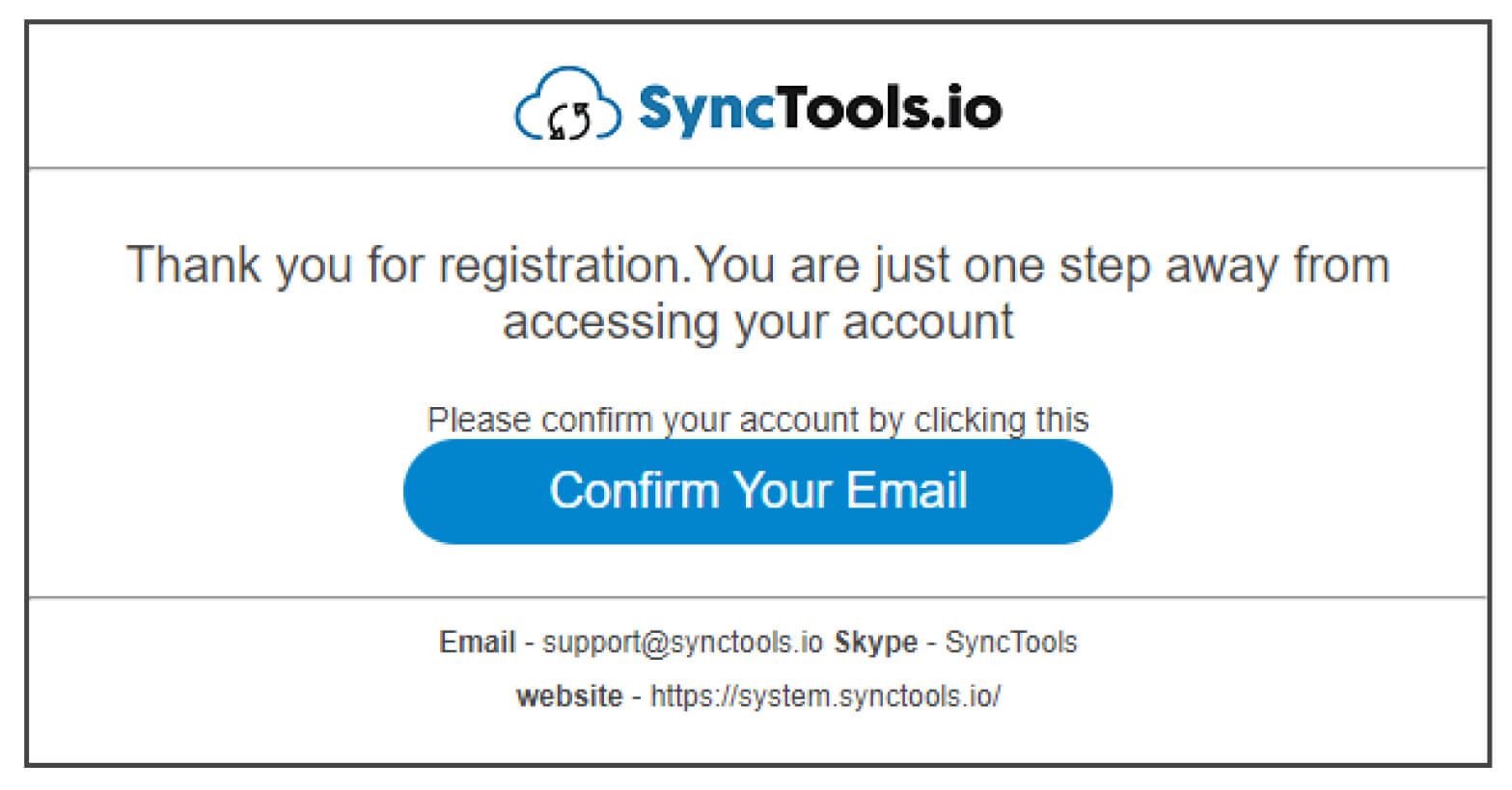
- You will get a confirmation email, click on the confirmation link
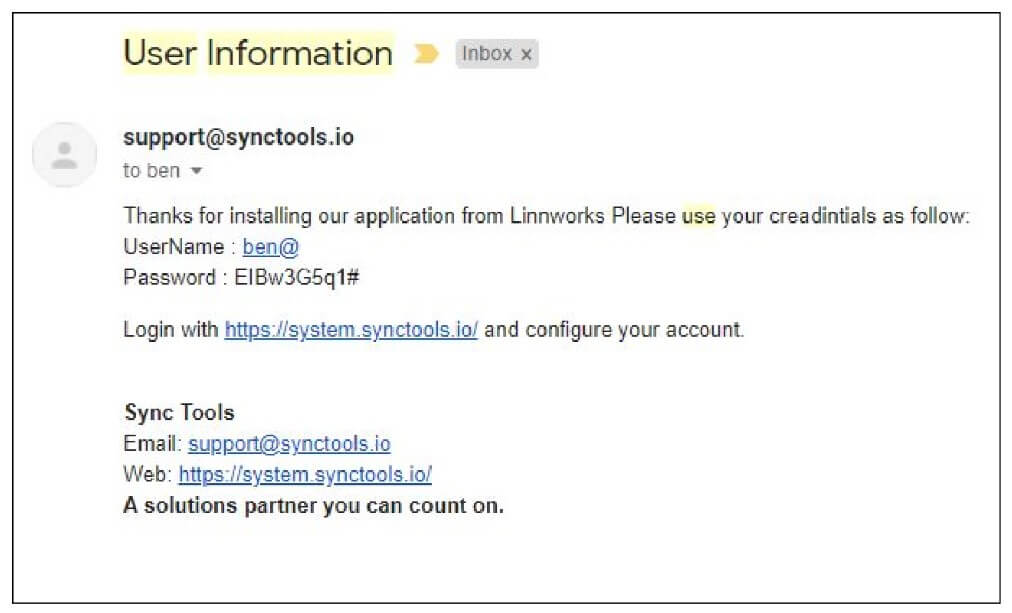
- User Information (Username + Password) will be sent
Log in to the SyncTools
- Use the credentials sent by SyncTools to Login
- This is the link for SyncTools system: https://system.synctools.io/
- Or you can go to https://synctools.ai and click on the Login button
installation quickbooks linnworks connector setup
Was this article helpful?