
Advanced Refund Configuration
Easily manage refunds with SyncTools' automated sales channel mapping and Xero integration. Ensure accurate credit notes and tax settings for seamless financial tracking.
Purpose
This feature is ideal for businesses with multiple sales channels. It allows you to set up:
- Distinct sales accounts
- Tracking categories
- Customer mappings
These can be configured based on the source and subsource of each transaction.
When Enabled
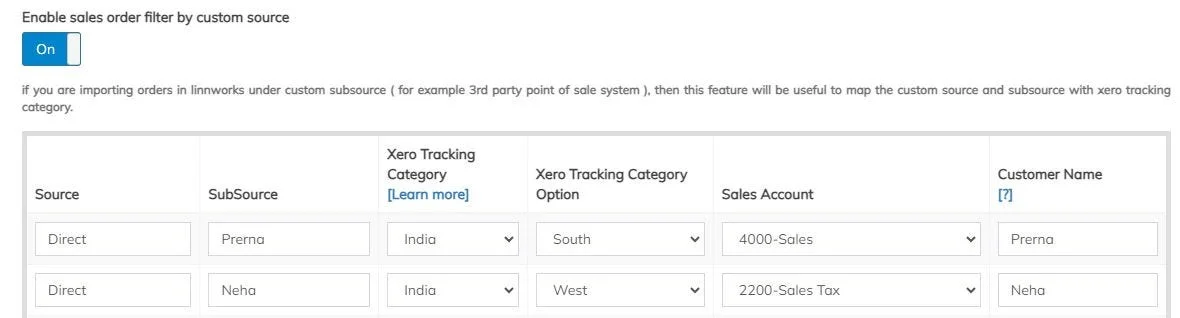
The system dynamically maps the source and subsource from each refund to the corresponding:
- Sales account
- Xero tracking category
- Customer
This mapping follows your sales channel configuration.
The payment method used for the refund determines the bank account according to your payment configuration. Advanced tax rules are applied automatically, based on the connection’s advanced tax setup.
When Disabled
The system reverts to a simplified configuration, displaying two default options:
- Default Credit Note Sales Account: The default sales account where all refunds are mapped.
- Tax for Refund: The default tax setting is applied to refunds.
The system will then generate a Credit Note that aligns with the corresponding Invoice, ensuring accuracy and consistency in your financial records.
Expected Output
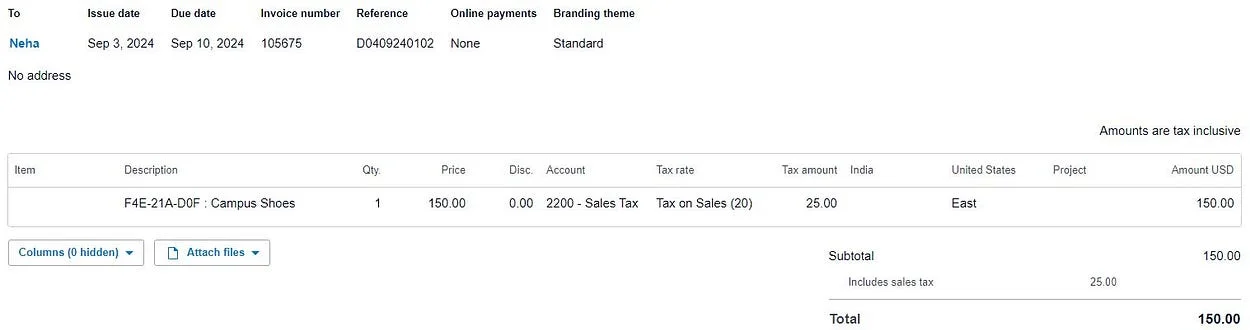
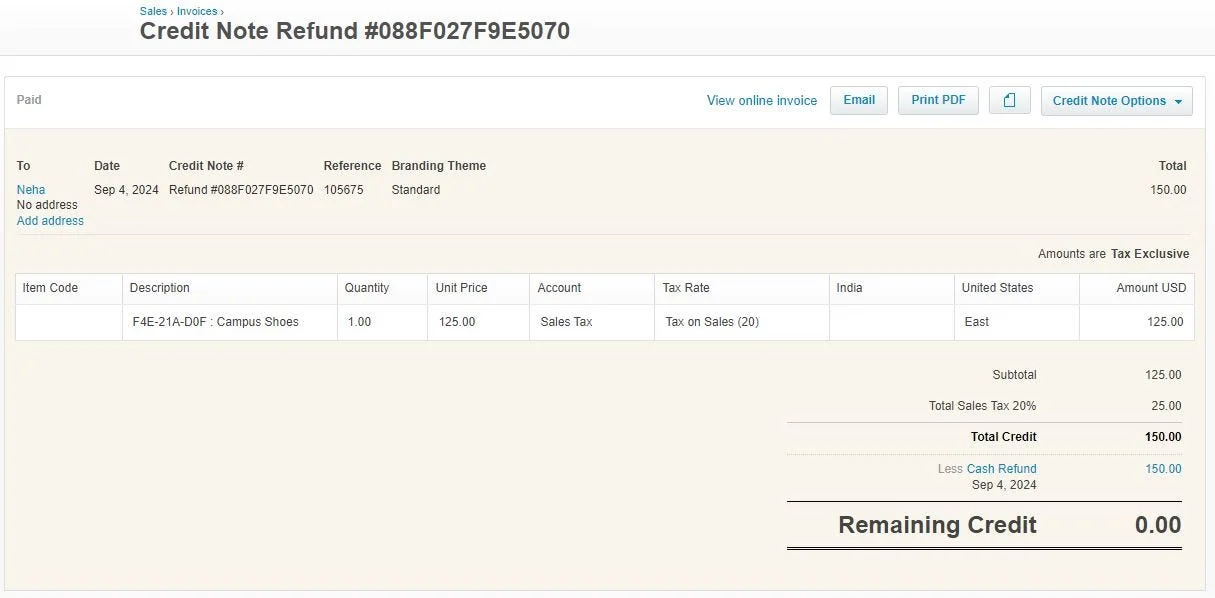
A credit note should look the same as an invoice with the customer, tracking category, tax rate and the payment will cut on the payment method wise respective bank account.
Initiating the Refund Process
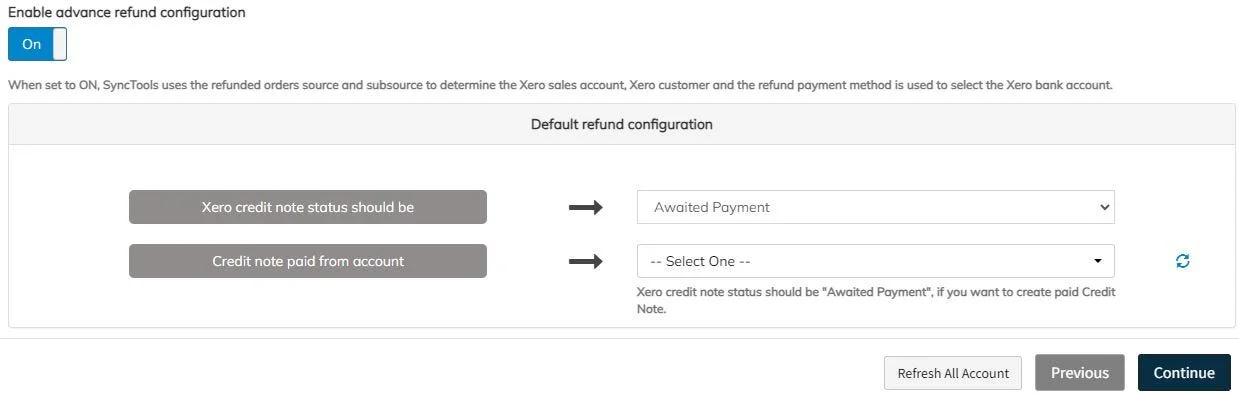
Bank Account Selection Criteria
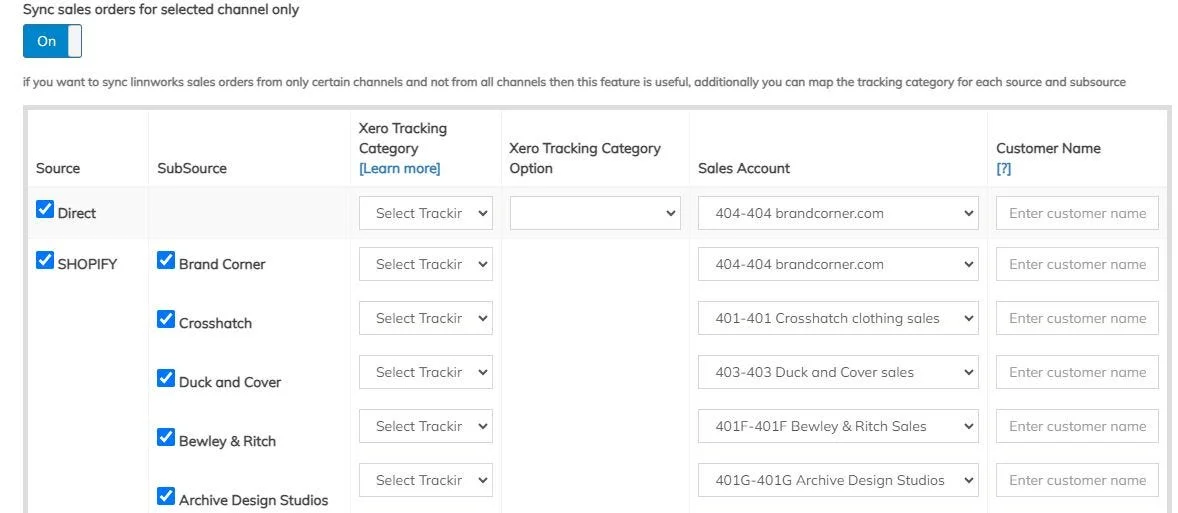
Enabling Channel-Specific Syncing: To sync sales orders from specific channels.
Source and Sub-source Specific Sales Accounts: These accounts determine how the sales are categorized and which bank account will be associated with the transaction.
Linnworks Payment Methods: The payment method used in Linnworks plays a key role in deciding which bank account will handle the refund.
Processing Sales Orders in Linnworks
When an order in Linnworks is marked as Paid, it needs to be processed further.
The sales order will be downloaded and synchronized with SyncTools to ensure all relevant details are captured and processed.

Invoice Creation in Xero
Once the order is processed, an invoice will be automatically generated in Xero.
This invoice is based on the selected Source and Sub-source, ensuring that all accounting entries align with the appropriate categories.
Processing Refunds
After the invoice is created, you can process a refund for the sales order.
Upon processing, a Refund ID will be generated, which uniquely identifies the transaction within the system.
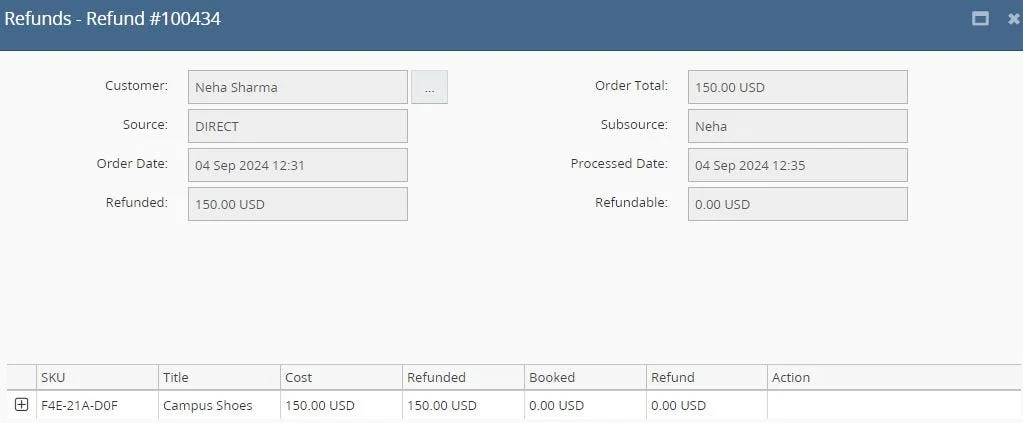
Actionable Refunds in SyncTools
A Refund Reference ID will be generated, which will serve as a tracking number for the refund.
The refund details will be downloaded into SyncTools, ensuring that all records are updated accordingly.
Credit Note Creation and Refund Allocation
A Credit Note will be created for the processed refund.
The refund amount will then be allocated back to the same account that was initially chosen for the payment process, ensuring consistency and accuracy in financial reporting.
Was this article helpful?