What Is Automated Reconciliation for eCommerce? (And How to Set It Up)
Automated reconciliation matches every eCommerce sale, fee, refund, and payout to your accounting system without manual entry. Here's how it works — and how to set it up in under 30 minutes.

Manual eCommerce reconciliation works until it doesn’t. The first hundred orders are manageable. By a thousand orders per month — across sales, platform fees, refunds, shipping, taxes, and net payouts — the manual process costs more than it saves.
TL;DR: Automated reconciliation software connects your eCommerce platform to your accounting system and maps every transaction — sales, fees, refunds, taxes, chargebacks — to the correct account automatically. For Shopify and WooCommerce merchants, SyncTools handles this in real time with no CSV exports or manual entry. Setup takes under 30 minutes.
What Is Automated Reconciliation for eCommerce?
Reconciliation, in accounting terms, is the process of confirming that two sets of records match — typically your sales records and your bank account. For eCommerce businesses, reconciliation is structurally more complex than for a traditional retailer because eCommerce platforms disburse net payouts, not gross sales.
When Shopify pays you out, the deposit in your bank account reflects gross sales minus Shopify Payments fees, minus any refunds processed during the payout period, minus any chargebacks. If your QuickBooks or Xero records show gross revenue, the two figures will never match directly — and manually tracing each payout back to its components is tedious, error-prone work.
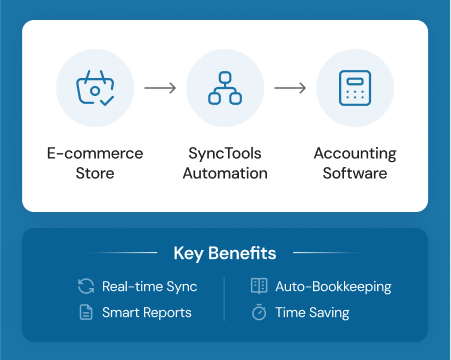
Automated reconciliation software solves this by sitting between your eCommerce platform and your accounting system. It reads transaction data directly from the platform API, categorizes each transaction type correctly, and creates accounting entries that mirror exactly what happened — so when the payout arrives, your books already reflect the underlying activity.
The reconciliation step itself becomes trivial: the software has already prepared a summary that matches the deposit to the penny.
Why Manual eCommerce Reconciliation Fails at Scale
Manual reconciliation has a predictable failure mode. It works at low order volumes, becomes unreliable in the mid-hundreds, and breaks entirely at scale. The structural reasons are the same for every eCommerce merchant:
Payouts are net, not gross. Shopify and WooCommerce payment processors settle net amounts after deducting fees. A £10,000 sales day might yield a £9,650 payout after a 2% Shopify Payments fee and £150 in refunds. Every entry must trace back to the gross figure — manually, that means a separate calculation for every payout period.
Multiple transaction types per order. A single Shopify order generates up to eight distinct financial events: gross revenue, payment processing fee, shipping charged to customer, shipping cost, discount applied, tax collected, potential refund, and eventual payout settlement. Each of these belongs in a different account. Manually mapping eight line items per order across hundreds of orders is not a bookkeeping task — it is a data entry operation.
Timing mismatches are systematic. Shopify Payments typically disburses 1–3 business days after a sale. Refunds process asynchronously. Gift card redemption recognizes revenue at a different point than gift card sale. Chargebacks can arrive weeks after the original transaction. These timing gaps create a perpetual reconciliation backlog when handled manually.
A 2024 Intuit QuickBooks survey of 630 US small businesses found that 54% cite manual and repetitive tasks as their top productivity drain (Intuit QuickBooks, 2024). For eCommerce merchants, manual reconciliation is the single most common source of that drag.
Errors compound over time. A mis-mapped tax entry in January becomes a year-end adjustment problem. A refund processed to revenue instead of a contra-account means your P&L is wrong for the entire period. At scale, manual reconciliation errors are not occasional — they are structural.
How Automated Reconciliation Software Works
Automated reconciliation software operates in three stages:
1. Transaction Capture
The software connects to your eCommerce platform via API and reads every transaction in real time or on a scheduled interval. For Shopify, this includes the Orders API, Payouts API, Transactions API, and Refunds API. For WooCommerce, it reads WooCommerce orders and payment gateway transaction logs.
This API-level access is critical. Shopify’s order export (CSV) omits fee detail entirely — the fee data lives in the Payouts API. Manual CSV-based reconciliation structurally cannot capture Shopify Payments fees at the line-item level.
2. Transaction Categorization and Mapping
Each transaction type is mapped to a specific account in your accounting system. A correctly configured integration produces entries like:
| eCommerce Transaction | Accounting Entry |
|---|---|
| Product sale (gross) | Sales Revenue |
| Shopify Payments fee | Payment Processing Expense |
| Shipping charged to customer | Shipping Income |
| Carrier shipping cost | Shipping Expense |
| Discount applied | Discounts Given (contra-revenue) |
| Sales tax collected | Sales Tax Payable (liability) |
| Refund issued | Returns & Allowances |
| Payout deposit | Operating Bank Account |
| Net difference (fees + refunds) | Shopify Clearing Account |
The clearing account is the key to payout reconciliation. Gross sales credit the clearing account on the order date. When the payout arrives, the net deposit clears against the gross balance, and the difference — fees and refunds — posts to the correct expense accounts automatically. Your bank reconciliation then matches the actual deposit.
3. Reconciliation Match
When a payout deposit appears in your accounting system’s bank feed, the automated reconciliation software has already created a summary entry that matches the deposit amount. In Xero, this triggers a “1 match found” notification; in QuickBooks Online, the bank match resolves instantly. A reconciliation that previously required an hour of manual allocation takes one click.
Step-by-Step: Set Up Automated Reconciliation with SyncTools
The following steps apply to Shopify or WooCommerce connecting to QuickBooks Online or Xero.
Step 1 — Connect Your eCommerce Store
Log into SyncTools and navigate to Integrations → Add Source. Select your platform — Shopify or WooCommerce.
For Shopify, SyncTools redirects you to your Shopify admin for OAuth authorization. Approve the permissions — SyncTools needs read access to orders, transactions, payouts, and refunds. No API keys are required.
For WooCommerce, SyncTools provides a lightweight plugin that you install from the WordPress plugin directory. Once installed, enter your SyncTools connection key and authorize. The plugin creates a secure API channel between WooCommerce and SyncTools without exposing your WordPress admin credentials.
See also: Shopify to QuickBooks Online integration guide | WooCommerce to QuickBooks Online integration guide
Step 2 — Connect Your Accounting System
In SyncTools, go to Integrations → Add Accounting System and select QuickBooks Online or Xero.
For QuickBooks Online, complete the Intuit OAuth flow. SyncTools requests read/write access to transactions, chart of accounts, and bank feeds. For Xero, complete the Xero OAuth flow — SyncTools connects to your Xero organization and bank accounts.
Both connections take about 30 seconds and do not require developer credentials or API key management.
See also: Shopify to Xero integration guide
Step 3 — Map Transaction Types to Accounts
This step determines whether your books are accurate. Open the Account Mapping panel in SyncTools and review each transaction type.
SyncTools pre-populates defaults based on your existing chart of accounts, but you should verify:
- Sales tax maps to a liability account (Sales Tax Payable), not a revenue account
- Payment processing fees map to an expense account, not a deduction from revenue
- Refunds map to Returns & Allowances or a credit memo account, not to negative sales
- Gift card sales map to a liability account, not revenue (revenue recognizes on redemption)
- Shipping income maps to a separate account if you want to track shipping margin
Spend 10–15 minutes on this step. Correct mapping from day one prevents month-end adjustments and keeps your P&L accurate throughout the year.
Step 4 — Configure Sync Frequency and Transaction Grouping
Sync frequency: Choose real-time (within minutes of each eCommerce event) or daily batch. Real-time is more accurate for accrual-basis businesses. Daily batch is cleaner if your bookkeeper reviews entries in batches or you prefer fewer QuickBooks/Xero entries per day.
Transaction grouping: Sync each order individually (maximum audit trail, easier to trace to order numbers) or group by day (reduces accounting system clutter for high-volume stores). Merchants processing more than 500 orders per month typically prefer daily grouping.
Step 5 — Run a Historical Backfill (Optional)
If you’re connecting SyncTools to an existing store with transaction history, use the Historical Backfill feature to import past orders. SyncTools supports backfill up to 2 years for Shopify and 18 months for WooCommerce.
Set your backfill start date — typically the first day of your current fiscal year or the last date your books were reconciled manually. Run the backfill in a test environment first if possible, and review the imported entries before confirming.
Step 6 — Verify Your First Sync
After your first live sync, verify these five things in QuickBooks Online or Xero:
- Gross sales total matches your eCommerce platform’s analytics for the same period
- Processing fees appear as expenses, not deductions from gross revenue
- Sales tax sits in a liability account, not included in income
- Refunds appear as credit memos or reversals, not negative sales
- Payout summary matches the net deposit amount in your bank feed
SyncTools provides a per-transaction reconciliation report if any discrepancy appears — it shows exactly where each transaction landed and flags mismatches between the platform record and the accounting entry.
Handling Specific eCommerce Reconciliation Scenarios
Multi-Currency Orders
If you sell in multiple currencies, your eCommerce platform converts payouts at its exchange rate, which may differ from your accounting system’s rate. SyncTools captures both the foreign currency amount and the home-currency equivalent and posts any exchange gain or loss to a dedicated FX account in QuickBooks or Xero. This keeps your P&L accurate and satisfies audit requirements without manual currency conversion.
Chargebacks
Chargebacks create a three-part accounting event: the original sale (already recorded), the chargeback deduction from a future payout (must reverse the revenue and create a receivable), and the outcome (won or lost, which either restores the revenue or writes it off as a bad debt). Manual chargeback accounting is one of the most common sources of reconciliation errors. SyncTools handles all three stages automatically, including the conditional resolution based on chargeback outcome.
Marketplace Fee Structures
If you sell across multiple platforms — Shopify, WooCommerce, Amazon, eBay, TikTok Shop, Walmart Marketplace — each has a different fee structure and payout timing. SyncTools connects to each platform separately and applies the correct fee mapping per channel, so your expense accounts accurately reflect actual processing costs per channel rather than a blended average. For platform-specific reconciliation detail, see the TikTok Shop accounting guide (which covers affiliate commissions and referral fee disaggregation) and the Walmart Marketplace accounting guide (WFS fees, biweekly payout cycles, and Walmart Connect ad spend).
Frequently Asked Questions
What is automated reconciliation for eCommerce?
Automated reconciliation is the process of using software to automatically match every sales transaction — including fees, refunds, taxes, and payouts — from your eCommerce platform to the correct accounts in your accounting system, without manual data entry.
Why does manual reconciliation fail for eCommerce?
eCommerce payouts are net amounts — fees and refunds are deducted before disbursement. Each order generates multiple transaction types that belong in different accounts. Timing mismatches between sales, refunds, and payout settlement create a perpetual backlog. At any meaningful order volume, manual reconciliation cannot keep up without systematic errors.
What automated reconciliation software works with Shopify and QuickBooks?
SyncTools, A2X, Synder, and MyWorks all integrate Shopify with QuickBooks Online. SyncTools and A2X are the strongest options for fee-level reconciliation and multi-currency support. For WooCommerce, SyncTools, Synder, and MyWorks offer similar functionality.
Does automated reconciliation handle sales tax?
Yes. Automated reconciliation software maps sales tax collected to a Sales Tax Payable liability account, keeping it separate from revenue. This prevents overstating income and gives you an accurate liability figure for remittance. Manual reconciliation frequently mis-maps tax to revenue — one of the most common and consequential bookkeeping errors.
How long does setup take?
SyncTools setup takes 15–30 minutes for initial connection, account mapping, and first sync. Historical backfill adds time depending on volume — typically 30–60 minutes to review and confirm imported entries for 12 months of data.
What’s the ROI of automated reconciliation software?
A 2024 Intuit study found merchants who automate accounting workflows save an average of 25 hours per week on data entry and reconciliation (Intuit QuickBooks, 2024). At $50/hour bookkeeper cost, that is $1,250 per week — significantly more than any reconciliation software subscription. The more significant cost is accounting errors: mis-mapped tax, missed fees, or incorrect refund entries can require expensive accountant cleanup and create tax compliance risk.
Start Automating Your eCommerce Reconciliation
Manual eCommerce bookkeeping costs the average merchant more in accountant time and error correction than the software that replaces it. For Shopify and WooCommerce merchants using QuickBooks Online or Xero, SyncTools handles the entire reconciliation workflow automatically — sales, fees, refunds, taxes, chargebacks, and payout matching — with setup in under 30 minutes.
Start your free trial — no credit card required.
Related guides:
- Shopify to QuickBooks Online — full setup guide
- Shopify to Xero — full setup guide
- WooCommerce to QuickBooks Online — full setup guide
- TikTok Shop QuickBooks Online Integration
- Walmart Marketplace QuickBooks Online Integration
- How to Connect Shopify to QuickBooks Online (Step-by-Step)
- TikTok Shop QuickBooks Integration: Complete Setup Guide
- Walmart Marketplace Accounting: QuickBooks & Xero Guide
- eCommerce Bookkeeping: What Every Online Seller Must Know
- Shopify Payout Reconciliation in QuickBooks
- AI-Powered Automated Reconciliation Software
- QuickBooks Automation for eCommerce
Ready to automate your accounting?
Connect Shopify, WooCommerce, or Linnworks to QuickBooks, Xero & more. Setup in minutes.