QuickBooks Automation for eCommerce: Save Hours and Eliminate Data Entry Errors
Manual QuickBooks data entry costs eCommerce businesses hours every week and introduces errors that compound at tax time. Here's how to automate it — and what to automate first.

Manual QuickBooks data entry is the single most expensive routine task in eCommerce accounting — not because it requires skill, but because it consumes time and introduces errors at every repetition. Automating it is the highest-leverage change most eCommerce sellers and their bookkeepers can make this year.
TL;DR: A 2024 Intuit QuickBooks survey found small businesses spend an average of 25 hours per week on manual bookkeeping tasks (Intuit QuickBooks, 2024). Automating your QuickBooks eCommerce sync eliminates the majority of that time — sales, fees, refunds, and taxes flow directly from your platform APIs into the correct accounts, without spreadsheets or manual re-entry.
New to eCommerce accounting? Start with the complete eCommerce bookkeeping guide to understand the accounting layer before diving into automation.
What Does Manual QuickBooks Data Entry Actually Cost?
Manual data entry is not free. A 2024 Intuit QuickBooks survey of 630 US small businesses found that 54% of small business owners cite manual and repetitive tasks as their top productivity drain (Intuit QuickBooks, 2024). For eCommerce businesses, the cost has three distinct layers: time, errors, and opportunity.
Time cost by order volume:
At 10 orders per day, manual entry takes roughly 20–30 minutes daily — around 8–10 hours per month. That seems manageable. At 50 orders per day, the same workflow consumes 40–60 hours monthly. At 200 orders per day, manual entry is a full-time job. The math doesn’t change; only the point at which it breaks you does.
Error cost at tax time:
Human data entry produces approximately 1 error per 300 keystrokes under normal working conditions (IEEE Transactions on Professional Communication, 1994). For a seller entering 500 order lines per month, that’s roughly one to two errors per session. A misclassified FBA fee or a missed refund seems minor in isolation. Accumulated over 12 months, those errors distort your P&L, trigger reconciliation gaps, and cost accountant time to unwind — often at $150–250 per hour.
Opportunity cost:
Every hour a bookkeeper spends re-keying order data is an hour not spent analyzing margins, preparing forecasts, or reviewing tax liability. That’s the trade-off manual entry imposes — and it’s invisible until you automate it away.
Our observation: Bookkeepers who switch to automated QuickBooks sync consistently report that their first full month post-automation is the first time they’ve had capacity to review client P&Ls proactively rather than reactively.
What Does “QuickBooks Automation” Actually Mean for eCommerce?
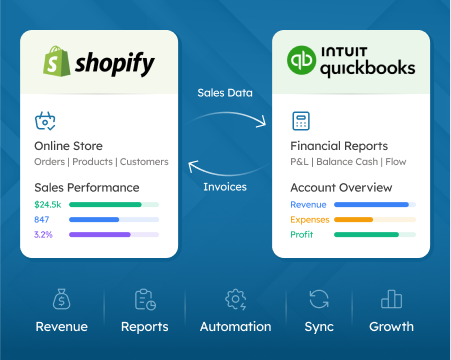
QuickBooks automation for eCommerce means API-driven sync — not scheduled CSV imports, not manual batch uploads, and not a human copying data between two browser tabs. Real automation connects your sales platform’s API directly to the QuickBooks API through a sync layer, with no manual steps in between.
The distinction matters. A CSV-import workflow can fail silently — a missed export, a formatting change, a duplicate row — and you won’t know until reconciliation. An API-driven sync pulls structured data directly from the source and writes it to QuickBooks with a transaction log you can audit.
The automation stack looks like this:
Platform API (Shopify, Amazon, WooCommerce) → Sync tool (SyncTools) → QuickBooks Online API
Each layer handles a specific job. The platform API delivers raw transaction data — order amounts, fee breakdowns, refund timestamps. The sync tool applies your account mapping rules and transforms the data into QuickBooks-compatible journal entries. The QuickBooks API writes those entries and confirms success.
What automation handles vs. what still needs human review:
Most transactions are routine and fully automatable: standard sales, gateway fees, refunds, tax collection, payout deposits. A small percentage require human judgment — unusual transaction types, reclassification decisions, intercompany transfers, or transactions that fall outside your mapping rules. Good automation handles the 95% and flags the 5% for review, rather than forcing human eyes on everything.
Worth noting: Many sellers assume they need to review every automated entry. In practice, the error rate on well-configured API sync is low enough that a monthly spot-check of 10–15 transactions catches the vast majority of exceptions — far more efficient than reviewing every line manually.
For a broader view of eCommerce accounting fundamentals, see the eCommerce bookkeeping guide.
The 7 eCommerce Tasks to Automate in QuickBooks First
Not every bookkeeping task is equally worth automating. These seven generate the most manual work and the most errors. Start here.
1. Sales transaction sync by channel
Every order from Shopify, Amazon, or WooCommerce needs to land in QuickBooks as a revenue entry on the correct account. Manually, this means exporting order reports and entering totals. Automated, it happens within minutes of each sale. At 50 orders per day, the time difference is 30–40 hours per month.
2. Payment gateway fee separation
Shopify Payments, Amazon, PayPal, and Stripe all deposit net figures — gross sales minus fees. If you book the deposit as revenue, you’re understating gross sales and hiding the true cost of processing. Automation pulls the fee detail from each platform’s payout API and maps it to a dedicated expense account, so your gross revenue and fee costs are always accurate.
3. Refund and credit memo creation
Refunds are asynchronous. A customer initiates a return today; the settlement might not clear for five to seven days. Automation captures the refund on the date the platform records it and creates a QuickBooks credit memo linked to the original invoice. Without this, refunds stack up as unreconciled items until month-end cleanup.
4. Sales tax tracking and liability mapping
Marketplace-collected sales tax (Amazon, Shopify) is not your revenue — it belongs to the government. It flows through your settlement reports and looks like income if you’re not careful. Automation maps tax collected to a QuickBooks sales tax liability account on every transaction. This keeps your income accurate and makes quarterly remittance calculations straightforward.
5. FBA and fulfillment fee recording
Amazon FBA fees span multiple categories: per-unit fulfillment, monthly storage, removal orders, advertising credits. Each has a different cost nature and should map to a different QuickBooks expense account. Automation pulls the fee breakdown from the Amazon settlement report and records each type separately. Lumping them into a single “Amazon fees” account works, but it hides which cost center is growing.
6. Bank reconciliation matching (settlement to payout)
Amazon pays every 14 days. Shopify pays every 1–3 business days. WooCommerce pays when your gateway settles. Each platform’s deposit to your bank account is a net figure that needs to match the corresponding settlement period in QuickBooks. Automation handles this with a clearing account approach — sales record on the transaction date, the deposit reconciles when it hits your bank. Without this, your bank reconciliation is perpetually out of sync.
7. Monthly COGS calculation
Cost of Goods Sold updates every time inventory ships. If you’re using QuickBooks inventory tracking, each sale should trigger a COGS entry. Automation ensures the COGS entry is created on the sale date rather than waiting for a manual batch update — critical for accurate gross margin reporting during the month.
How Much Time Does Automation Save by Channel?
Time savings from QuickBooks automation vary by platform because each platform has different settlement complexity. Here’s what the numbers look like in practice.
Amazon: Amazon settlements are the most complex of the three major eCommerce platforms. A single bi-weekly settlement report can contain dozens of transaction types across FBA fees, referral fees, advertising credits, refunds, and adjustments. Manual reconciliation of one Amazon settlement typically takes 2–4 hours per settlement period, or 4–8 hours per month. With automation, that drops to near zero — a 10-minute monthly review of the reconciliation report replaces the full manual process.
Shopify: Shopify’s payout frequency is higher (every 1–3 business days), which means more reconciliation events. Manual payout matching for a store processing 500 orders per month takes roughly 3–5 hours per month. Automated sync reduces this to a monthly verification pass of under 30 minutes.
WooCommerce: WooCommerce complexity depends on your payment gateway. Stripe and PayPal both provide payout APIs; SyncTools pulls fee data directly from each. Manual gateway fee separation and state-level tax reconciliation for a WooCommerce store with multi-state sales takes 2–4 hours monthly. Automation eliminates the fee separation entirely and handles tax mapping per transaction.
For platform-specific setup guides: Amazon · Shopify · WooCommerce · BigCommerce · TikTok Shop · Walmart Marketplace
| Task | Manual Time (monthly) | Automated Time (monthly) |
|---|---|---|
| Amazon settlement reconciliation | 4–8 hours | < 30 minutes |
| Shopify payout matching | 3–5 hours | < 30 minutes |
| WooCommerce fee separation | 2–4 hours | Near zero |
| Refund matching (all channels) | 1–2 hours | Near zero |
| Sales tax liability tracking | 1–3 hours | Near zero |
| Total | 11–22 hours | < 1 hour |
Estimates based on stores processing 200–500 orders per month. Higher volume scales the manual hours; automated time remains roughly flat.
How Does Automation Reduce Accounting Errors?
Automation doesn’t just save time — it eliminates an entire category of errors. Research on manual data entry error rates puts the figure at roughly 1 error per 300 keystrokes (IEEE Transactions on Professional Communication, 1994). For a bookkeeper entering 1,000 QuickBooks lines per month, that’s three to four errors per month — which compounds into a meaningful reconciliation problem by year-end.
The five most common errors automation prevents:
Transposition errors: Typing 1,249.00 as 1,294.00 is a human problem. API data transfers amounts as structured numbers, not typed strings. Transpositions don’t happen.
Missed refunds: Refunds processed late in a settlement cycle are easy to miss in a manual workflow. Automation pulls every refund from the platform API — the sync doesn’t close until all refund records are accounted for.
Misclassified fees: FBA storage fees booked as COGS, Shopify Payments fees booked as bank charges — these are common manual errors. Your account mapping rules apply consistently to every transaction once they’re configured.
Wrong tax bucket: Sales tax coded to revenue instead of a liability account is the most consequential misclassification for eCommerce businesses. It overstates income, understates your tax liability, and creates a compliance risk. Automation maps tax to the correct account on every transaction — the rule doesn’t forget.
Duplicate entries from CSV re-import: A CSV exported on Monday and re-imported on Thursday after a “just to be safe” re-run creates duplicate revenue entries. API sync is idempotent — it checks for existing transactions before writing new ones, preventing duplicates by design.
Configuration matters: In our experience, the most common source of errors in automated sync is misconfigured account mapping on setup — typically sales tax routed to revenue, or gateway fees not separated from gross sales. Spending 15 minutes reviewing your account mappings before your first sync prevents the majority of downstream corrections.
Which QuickBooks Automation Tool Should You Choose?
The right tool depends on which channels you sell on, how much fee-level detail your accountant needs, and whether you need to backfill historical data. Here’s an honest comparison of the tools most eCommerce sellers evaluate.
What to look for:
- Real-time vs. batch sync: Real-time is more accurate for accrual accounting; batch is fine if your bookkeeper reviews entries daily.
- Fee line-item detail: Tools that separate fees at the transaction level (not just totals) produce more useful P&L data.
- Historical backfill: Essential if you’re switching from manual entry mid-year and need your books to reflect the full year.
- Multi-channel support: If you sell on Amazon and Shopify, you want one tool managing both — not two separate subscriptions with inconsistent mapping.
- QuickBooks certification: Intuit-certified apps have been reviewed for API compliance and data handling. It’s not mandatory, but it’s a useful signal.
| Feature | SyncTools | A2X | Synder | Native QB Connector |
|---|---|---|---|---|
| Real-time sync | Yes | No (daily batch) | Yes | No (daily batch) |
| Fee line-item separation | Yes | Yes | Yes | Limited |
| Multi-channel (Amazon + Shopify) | Yes | Yes | Yes | Shopify only |
| WooCommerce support | Yes | No | Yes | No |
| Historical backfill | Yes (up to 2 years) | Yes (up to 3 years) | Yes | 90 days |
| Starting price | Free trial | $19/mo | $53/mo | Free |
Pricing and features verified as of April 2026. Verify current pricing on each vendor’s website before purchasing.
A2X is the most established tool for high-volume Amazon sellers and produces clean settlement summaries. Synder is strong on multi-platform breadth and real-time sync but carries a higher price point. The native QuickBooks connector is sufficient for low-volume stores with simple tax requirements — it handles fewer scenarios and lacks fee-level detail.
SyncTools wins on the combination of real-time sync, fee separation depth, WooCommerce support, and historical backfill — which matters most for sellers switching from manual entry who need to catch up their books.
For platform-specific integration details, see the Amazon QuickBooks integration guide.
How to Set Up QuickBooks Automation with SyncTools
Setup takes 15–20 minutes. You don’t need developer credentials or API keys — both connections use OAuth.
Step 1: Start your free trial
Go to /pricing and start a free trial. No credit card required at signup.
Step 2: Connect your eCommerce channel
In SyncTools, navigate to Integrations and select your platform — Amazon, Shopify, or WooCommerce. Complete the OAuth authorization. SyncTools receives read access to your orders, settlements, and fee reports. It never writes to or modifies your sales platform.
Step 3: Connect QuickBooks Online
Click Add Accounting System, select QuickBooks Online, and complete the Intuit OAuth flow. SyncTools requests read/write access to transactions and your chart of accounts.
Step 4: Map your accounts
SyncTools pre-populates account mapping defaults based on your existing QuickBooks chart of accounts. Review each mapping — pay particular attention to sales tax (must map to a liability, not revenue) and payment gateway fees (must map to an expense, not a revenue deduction). This step takes five minutes and prevents the most common errors.
Step 5: Run your first sync and verify
Click Sync Now. For new setups, SyncTools pulls up to 2 years of historical data during backfill — so your full year is in QuickBooks from day one. After the sync, verify that gross sales, fees, refunds, and tax liabilities match your platform dashboards for the same period.
For platform-specific walkthroughs with screenshots, see the integration guides:
- Amazon QuickBooks Online integration guide
- Shopify QuickBooks Online integration guide
- BigCommerce QuickBooks integration guide
What Automation Doesn’t Replace
Automation handles the volume work. It doesn’t replace accounting judgment.
Unusual transactions — intercompany transfers, payment plan arrangements, inventory write-downs — fall outside standard mapping rules. They need human review and manual classification. A well-configured sync tool flags these for review rather than silently miscategorizing them.
Tax filing itself: Automation tracks your sales tax liability with precision. It does not file your returns. You still need a tax professional or a dedicated sales tax filing service (TaxJar, Avalara) to submit remittances. The automation gives them clean, accurate liability figures to work from.
Inventory counts: QuickBooks inventory tracking requires periodic physical counts to reconcile against system quantities. Automation records COGS on each sale, but it can’t count what’s in your warehouse.
Accountant judgment on edge cases: When a transaction doesn’t fit a standard category — a supplier credit that partially offsets an invoice, a chargeback that was later reversed — your accountant needs to decide how to classify it. Automation handles the 95% of transactions that are straightforward to free up accountant time for the 5% that genuinely need judgment.
Think of automation as a very reliable, very fast bookkeeping assistant that never makes transposition errors and never takes a day off. It still reports to an accountant who sets the rules and reviews the exceptions.
Frequently Asked Questions
Can QuickBooks be automated for eCommerce?
Yes. QuickBooks Online integrates with eCommerce platforms including Amazon, Shopify, and WooCommerce through sync apps that push sales, fees, refunds, and taxes into QuickBooks automatically. The integration uses each platform’s API — no manual CSV exports or data re-entry required. Setup takes 15–20 minutes and sync runs continuously from that point forward.
How much time does QuickBooks automation save for eCommerce sellers?
Most eCommerce sellers save 5–15 hours per month on bookkeeping after automating their QuickBooks sync. At higher order volumes (1,000+ orders per month), savings can exceed 20 hours monthly. The biggest time reduction comes from eliminating settlement reconciliation, which typically consumes 4–8 hours per month for Amazon sellers alone.
What eCommerce tasks can be automated in QuickBooks?
The main automatable tasks are: sales transaction sync by channel, payment gateway fee separation, refund and credit memo creation, sales tax tracking and liability mapping, FBA and fulfillment fee recording, bank reconciliation matching, and monthly COGS calculation. Together these cover the vast majority of routine bookkeeping work for eCommerce businesses.
What is the best QuickBooks automation tool for eCommerce?
SyncTools is purpose-built for eCommerce QuickBooks automation, supporting Amazon, Shopify, and WooCommerce with real-time sync, fee-level detail, and historical backfill up to 2 years. A2X is a strong alternative for high-volume Amazon sellers. Synder works well for sellers who need broad multi-platform coverage. The native QuickBooks connector is adequate for low-volume stores with simple tax requirements.
Does automating QuickBooks reduce accounting errors?
Yes. Manual data entry produces roughly 1 error per 300 keystrokes (IEEE Transactions on Professional Communication, 1994). For a business entering 1,000 QuickBooks lines per month, that’s three to four errors monthly — which compounds over a year into material reconciliation problems. API-driven automation transfers structured data directly from the platform, eliminating transposition errors, missed refunds, duplicate entries, and tax misclassifications.
How do I set up QuickBooks automation for my eCommerce store?
Connect your platform (Amazon, Shopify, or WooCommerce) to QuickBooks Online using SyncTools. The setup has five steps: start your free trial at synctools.ai/pricing, connect your eCommerce platform via OAuth, connect QuickBooks Online, map your chart of accounts (SyncTools pre-populates defaults), and run your first sync. Total time: 15–20 minutes. Historical backfill handles the rest.
Start Automating Your QuickBooks Today
Manual bookkeeping costs the average small business 25 hours per week in data entry and reconciliation (Intuit QuickBooks, 2024). For eCommerce businesses specifically, the cost is higher — settlement complexity, multi-channel fee structures, and asynchronous refunds mean every week of manual entry is a week of compounding errors.
QuickBooks automation eliminates the volume work. It doesn’t require a developer, a data migration project, or a long implementation. Setup takes under 20 minutes. Historical backfill means your full year’s data is in QuickBooks from day one.
Start your free trial at SyncTools — no credit card required. Connect your first channel, run your first sync, and see what your books look like when the data entry is done automatically.
Ready to go deeper? See the Amazon QuickBooks integration guide, Shopify QuickBooks integration guide, WooCommerce QuickBooks integration guide, TikTok Shop QuickBooks integration guide, or Walmart Marketplace accounting guide. For AI-driven reconciliation capabilities, see the AI-powered automated reconciliation guide. New to eCommerce accounting? Start with the eCommerce bookkeeping guide.
Ready to automate your accounting?
Connect Shopify, WooCommerce, or Linnworks to QuickBooks, Xero & more. Setup in minutes.