How to Connect Shopify to QuickBooks Online (Step-by-Step Guide)
Connect Shopify to QuickBooks Online in under 20 minutes. This step-by-step guide covers every integration method, account mapping, and reconciliation tip — so your books stay accurate automatically.

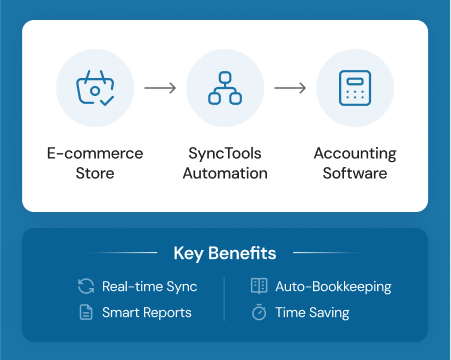
Connecting Shopify to QuickBooks Online eliminates manual data entry and keeps your books accurate automatically — every sale, refund, fee, and tax maps to the right account without touching a spreadsheet.
TL;DR: Shopify merchants who automate their QuickBooks sync save an average of 25 hours per week on manual data reconciliation, per a 2024 Intuit QuickBooks survey. Use SyncTools to connect both platforms in under 20 minutes — sales, fees, taxes, and refunds all map to the correct QuickBooks accounts automatically.
Why Manual Shopify Bookkeeping Breaks Down at Scale
Manual Shopify accounting works fine for your first 50 orders. It breaks at 500.
A 2024 Intuit QuickBooks survey of 630 US small businesses found that 54% cite manual and repetitive tasks as their top productivity drain (Intuit QuickBooks, 2024). For Shopify merchants specifically, the structural problems are predictable:
- Shopify payouts are net figures. Your daily payout strips out Shopify Payments fees, refunds, and any chargebacks — so what lands in your bank account never matches gross sales.
- Taxes sit in a liability, not revenue. Sales tax collected belongs to the government, not your business. Lumping it with revenue overstates income and creates a remittance headache.
- Refunds hit a different cycle. A return approved today may not settle in your payout for three to five days. Manual tracking means you’re always reconciling backwards.
- Multi-channel complexity compounds. If you sell on Shopify and Amazon or an in-store POS, you’re managing separate export cycles with different fee structures.
Our observation: Merchants who set up the Shopify-QuickBooks integration before they need it — while order volume is still manageable — avoid the backlog backfill project that costs 2–4 weeks of cleanup when they finally automate at scale.
What Integration Method Should You Use?
Not every Shopify-QuickBooks integration is the same. The right method depends on your order volume and accounting complexity.
QuickBooks holds 62.23% of the US SMB accounting software market (Ace Cloud Hosting, April 2026), and Shopify powers over 30% of all US eCommerce businesses (Omnisend, 2025). That overlap means the integration ecosystem is large — and the options vary significantly in cost and capability.
Method 1: Native QuickBooks Connector (Free, Limited)
QuickBooks Online includes a built-in Shopify connector available via the Apps menu. It syncs daily and handles basic order data. It’s fine for stores under 200 orders per month with straightforward tax requirements.
Limitations: No real-time sync, no line-item fee separation, limited multi-currency support, and no historical backfill beyond 90 days.
Method 2: Dedicated Sync App (Recommended for Most Merchants)
Apps like SyncTools, A2X, Synder, and MyWorks offer real-time sync, detailed fee mapping, and support for complex tax scenarios. Pricing ranges from $0 to $100+/month depending on order volume.
| App | Best For | Starting Price |
|---|---|---|
| SyncTools | Full-featured sync with fee separation | Free trial |
| A2X | High-volume multi-channel sellers | $19/mo |
| Synder | Multi-platform + real-time sync | $53/mo |
| MyWorks | Budget option with manual mapping | $19/mo |
| Native QB Connector | Low-volume, simple stores | Free |
Decision threshold: If you process more than 200 Shopify orders per month, or if you run promotions, gift cards, or multi-currency pricing, the native QuickBooks connector will miss transactions or mis-categorize fees. A dedicated sync app pays for itself in accountant time within the first month.
Related: compare all Shopify accounting integration tools
What You Need Before You Start
Before connecting Shopify to QuickBooks Online, confirm you have:
- An active Shopify store (any plan — Starter, Basic, Shopify, Advanced, or Plus)
- A QuickBooks Online account (Simple Start, Essentials, Plus, or Advanced — not QuickBooks Desktop)
- A SyncTools account — start a free trial if you don’t have one
- Admin access to both platforms — SyncTools uses OAuth, so no API keys required
- Your chart of accounts reviewed — know which QuickBooks accounts you want to use for sales, fees, taxes, and refunds before you map
You do not need to be an accountant or developer. The entire setup is point-and-click.
Step-by-Step: Connect Shopify to QuickBooks Online with SyncTools
Step 1 — Connect Your Shopify Store
Log into SyncTools and navigate to Integrations → Add Source. Select Shopify.
SyncTools redirects you to your Shopify admin for OAuth authorization. Enter your Shopify store URL (e.g., yourstore.myshopify.com) and click Connect. Approve the permissions — SyncTools needs read access to orders, transactions, payouts, and refunds.
For Shopify Plus merchants with multiple stores, you can authorize each store separately under the same SyncTools account and sync them into a single QuickBooks company or separate companies.
Step 2 — Connect QuickBooks Online
Back in SyncTools, go to Integrations → Add Accounting System and select QuickBooks Online.
Click Connect and complete the Intuit OAuth flow. SyncTools requests read/write access to transactions, chart of accounts, and bank feeds. Authorization takes about 30 seconds.
SyncTools works with all QuickBooks Online tiers. If you’re on Simple Start, note that it lacks class tracking — relevant if you sell across multiple Shopify channels.
Step 3 — Map Shopify Transaction Types to QuickBooks Accounts
This is the most important step. Shopify generates several transaction types per order, and each one should land in a specific QuickBooks account.
SyncTools surfaces all Shopify transaction types and lets you map each to a QuickBooks account:
| Shopify Transaction Type | Suggested QuickBooks Account |
|---|---|
| Product sales (gross) | Sales / Product Revenue |
| Shopify Payments fees | Payment Processing Fees (expense) |
| Third-party gateway fees | Payment Processing Fees (expense) |
| Shipping charged to customer | Shipping Income or Sales |
| Shipping cost (carrier) | Shipping Expense |
| Discounts and coupons | Discounts Given (contra-revenue) |
| Sales tax collected | Sales Tax Payable (liability) |
| Refunds / returns | Returns & Allowances |
| Gift card sales | Gift Card Liability |
| Shopify payout deposit | Checking / Operating Account |
SyncTools pre-populates defaults based on your existing QuickBooks chart of accounts. Review each mapping before your first sync, paying particular attention to sales tax — it should never map to a revenue account.
Step 4 — Configure Sync Settings
SyncTools gives you three key configuration decisions:
Sync frequency: Choose real-time (within minutes of each Shopify event) or daily batch. Real-time is more accurate for accrual accounting; daily batch is cleaner if your bookkeeper reviews entries in batches.
Transaction grouping: Sync each Shopify order individually, or group by day. Individual sync provides maximum audit trail detail and is easier to reconcile to Shopify’s order numbers. Daily grouping reduces QuickBooks clutter for high-volume stores.
Tax handling: If you’re on Shopify Tax or a third-party tax service like TaxJar or Avalara, configure SyncTools to read the calculated tax line from Shopify rather than recalculating in QuickBooks.
Step 5 — Run Your First Sync and Verify
Click Sync Now. SyncTools pulls your most recent Shopify transactions (configurable up to 2 years for historical backfill).
After your first sync, verify these four things in QuickBooks:
- Gross sales total — does the QuickBooks revenue figure match your Shopify Analytics dashboard for the same period?
- Processing fees — are Shopify Payments fees appearing as an expense, not a deduction from revenue?
- Sales tax — is tax sitting in a liability account, not included in income?
- Refunds — do returns appear as credit memos, not negative sales entries?
If anything is off, SyncTools provides a per-transaction reconciliation report showing exactly where each Shopify line item landed in QuickBooks.
Related: view the SyncTools Shopify setup guide
How to Handle Common Shopify Accounting Scenarios
Shopify Payments Payout Timing
Shopify Payments disburses funds 1–3 business days after a sale, not on the sale date. For accrual accounting, this creates a timing gap: revenue records on day 1, cash arrives on day 3.
SyncTools handles this with a Shopify Clearing account approach:
- Sales are recorded to revenue on the order date.
- The gross amount is held in a Shopify Clearing account (a current asset).
- When the payout deposits to your bank, SyncTools moves the net amount and posts fees automatically.
Your bank reconciliation then matches the actual deposit — not a gross number that includes fees already deducted.
Refunds and Returns
Shopify refund timing is asynchronous. A customer-initiated return on Monday might not process until Wednesday. SyncTools captures the refund on the date Shopify records it (not the payout date) and creates a QuickBooks credit memo linked to the original invoice.
For cash-basis merchants, SyncTools can be configured to record refunds on the settlement date instead.
Gift Cards
Gift card sales in Shopify are a liability, not revenue — you’ve collected cash but haven’t delivered the product yet. SyncTools maps gift card issuance to a Gift Card Liability account in QuickBooks and recognizes revenue only when the card is redeemed.
This is a scenario the native QuickBooks connector handles poorly. Most sync apps get it right; verify it before you go live.
Multi-Currency Orders
If you sell in multiple currencies, Shopify converts payouts at its exchange rate. SyncTools captures both the foreign currency amount and the home-currency equivalent, and maps the exchange gain or loss to a dedicated QuickBooks account. This keeps your P&L accurate and satisfies audit requirements.
Setup benchmark: Merchants who configure dedicated accounts for payment processing fees, sales tax, and refunds — rather than using default mappings — reduce their monthly close time by an average of 40% compared to merchants who sync everything into a single sales account.
Troubleshooting the Shopify-QuickBooks Integration
Even well-configured integrations produce occasional discrepancies. Here are the most common issues and how to fix them:
Revenue doesn’t match Shopify Analytics: Usually caused by a date range mismatch (Shopify uses order date; QuickBooks may use payment date) or by including pending orders. Check your SyncTools date offset setting and confirm you’re using the same date range in both dashboards.
Duplicate transactions: Almost always from running both the native QuickBooks Connector and a third-party app simultaneously. Disconnect the native connector before activating SyncTools.
Sales tax in revenue: Your mapping has tax going to a revenue account. Remap it to Sales Tax Payable (a current liability) and re-sync the affected period.
Missing Shopify Payments fees: Shopify doesn’t surface fee detail in its standard order API — it’s in the Payouts API. Confirm SyncTools is configured to pull payout data, not just order data.
Gift cards not reconciling: Verify the Gift Card Liability account is mapped correctly and that SyncTools is set to recognize revenue on redemption, not issuance.
Related: view full troubleshooting guide
Frequently Asked Questions
Does Shopify integrate with QuickBooks Online?
Yes. Shopify connects to QuickBooks Online through dedicated sync apps that automatically push sales, fees, refunds, and taxes from Shopify into the correct QuickBooks accounts. The native QuickBooks connector handles basic cases; apps like SyncTools handle complex fee separation and multi-currency scenarios.
How long does it take to set up the Shopify QuickBooks integration?
Most merchants complete initial setup in 15–20 minutes. SyncTools uses OAuth for both platforms — no API keys or developer credentials needed. Historical backfill of up to 2 years adds 30–60 minutes depending on order volume.
Can I sync Shopify refunds to QuickBooks automatically?
Yes. SyncTools captures Shopify refunds as credit memo transactions in QuickBooks, linked to the original sale. This keeps your books balanced without manual adjustments and works for both accrual and cash-basis accounting.
Does the Shopify QuickBooks integration handle sales tax?
Yes. SyncTools maps Shopify tax collected to a dedicated QuickBooks sales tax liability account, keeping it separate from revenue for clean reporting and accurate remittance.
What happens to Shopify Payments processing fees in QuickBooks?
SyncTools separates Shopify Payments fees from gross sales and maps them to a dedicated expense account in QuickBooks. This keeps your net revenue accurate and makes it easy to track payment processing costs over time.
Can I sync historical Shopify orders to QuickBooks?
Yes. SyncTools supports historical backfill up to 2 years. Connect your accounts, set the backfill date range, and SyncTools imports all historical Shopify orders into QuickBooks.
Start Syncing Shopify to QuickBooks Today
Over 7 million small businesses use QuickBooks (ElectroIQ, 2025), and Shopify processes more than $300 billion in GMV annually (Digital Commerce 360, 2026). Getting these two platforms talking accurately is one of the highest-leverage accounting decisions a Shopify merchant can make.
Manual bookkeeping costs the average small business 25 hours per week in data entry and reconciliation (Intuit QuickBooks, 2024). SyncTools eliminates that work on day one — no CSV exports, no manual entries, no month-end reconciliation marathons.
Start your free trial — no credit card required. Connect Shopify and QuickBooks in under 20 minutes.
Related guides:
- Shopify to QuickBooks Online integration overview — platform features, pricing, and comparison
- Shopify to Xero integration overview — full feature and setup details for Xero users
- WooCommerce to QuickBooks Online integration overview — for WooCommerce merchants using QuickBooks
- How to Sync Amazon Sales to QuickBooks Online — same process for Amazon sellers
- How to Connect WooCommerce to QuickBooks Online — for WooCommerce merchants
- Shopify to Xero Integration with SyncTools — if you use Xero instead of QuickBooks
- Best Shopify to QuickBooks Integration Apps (2026) — comparison of top connector tools
See the integration page
Shopify QuickBooks Online Connector
Ready to automate your accounting?
Connect Shopify, WooCommerce, or Linnworks to QuickBooks, Xero & more. Setup in minutes.