A guide to Shopify to Xero Integration with connector SyncTools
Learn how to connect Shopify to Xero using SyncTools. Automate sales sync, reconcile payouts, and eliminate manual data entry in minutes.
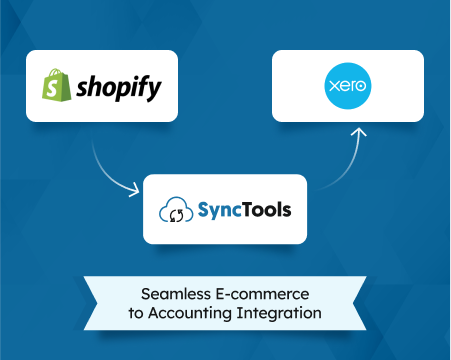
Connecting Shopify to Xero automatically maps every sale, refund, fee, and tax to the right Xero account — so your books close cleanly at the end of every month without a single CSV export. SyncTools handles the mapping, the payout timing, and the reconciliation. You handle the business.
TL;DR: Manual Shopify-to-Xero reconciliation costs small businesses an average of 25 hours per week in data entry (Intuit QuickBooks, 2024). SyncTools connects both platforms via OAuth in under 15 minutes — syncing sales, fees, refunds, taxes, and payouts automatically, with no API keys required.
Using QuickBooks instead of Xero? See the Shopify QuickBooks integration guide.
Why Manual Shopify-to-Xero Bookkeeping Fails
Manual reconciliation between Shopify and Xero isn’t just slow — it’s structurally broken. A 2024 Intuit survey of 630 small businesses found that 54% cite manual and repetitive tasks as their top productivity drain (Intuit QuickBooks, 2024). For Shopify merchants using Xero, three specific problems make manual entry untenable.
Shopify payouts are net figures, not gross sales. Your payout strips out Shopify Payments fees, refunds, and chargebacks before the money hits your bank account. If you post the payout amount as revenue, you’re understating gross sales and losing visibility into your fee costs.
Sales tax collected is a liability, not income. Tax belongs to the government, not your business. Posting it to a revenue account overstates income and creates a remittance calculation problem every quarter. This is the most common error bookkeepers find when cleaning up DIY Shopify books.
Refund timing creates reconciliation gaps. A return approved Monday might not settle until Thursday. Manual tracking means you’re always reconciling backwards against a moving number — comparing Shopify’s order-date view against your bank’s settlement-date view.
Volume makes it worse fast. Manual entry works at 50 orders per month. At 500, the process consumes hours of bookkeeper time with a high error rate. Xero holds about 4.2 million subscribers globally (Xero Annual Report, 2024) — and a significant portion are eCommerce businesses fighting exactly this problem.
Our observation: Merchants who automate before they hit 300 monthly orders avoid the backfill project that costs 3–5 weeks of cleanup when they finally automate at scale. Earlier is almost always better.
What Does SyncTools Sync from Shopify to Xero?
SyncTools syncs every financially relevant transaction type from Shopify, not just top-line sales. Xero holds roughly 4% of the global accounting software market (G2 Market Research, 2025) and its account structure is well-suited to detailed transaction mapping — but only if the data coming in is correctly separated.
Here’s what SyncTools syncs to Xero:
| Shopify Transaction Type | How SyncTools Handles It |
|---|---|
| Gross product sales | Synced to your Xero sales account by product type |
| Shopify Payments fees | Separated and mapped to a payment processing expense account |
| Third-party gateway fees | Same as above — never deducted from gross revenue |
| Shipping charged to customer | Mapped to a dedicated shipping income account |
| Sales tax collected | Mapped to a sales tax liability account — never revenue |
| Refunds and returns | Created as credit notes in Xero, linked to the original invoice |
| Gift card issuance | Posted to a gift card liability account |
| Gift card redemption | Revenue recognized at point of redemption, liability reduced |
| Shopify payout deposit | Reconciled against your Xero bank feed via clearing account |
| Multi-currency orders | Synced with exchange rate data; gain/loss mapped to a dedicated account |
SyncTools supports two sync modes. Summarized (journal entry) mode groups all daily transactions into a single Xero journal entry — cleaner for high-volume stores. Individual transaction mode creates a separate Xero invoice or credit note for every Shopify order — better for audit trails and stores with complex line-item needs.
Account structure tip: Merchants who separate shipping income from product revenue get a cleaner picture of their true product margin. Shipping is often a cost center, not a profit center — lumping it into one sales account masks that reality.
Step-by-Step: How Do You Connect Shopify to Xero with SyncTools?
Setup takes under 15 minutes for most merchants. SyncTools uses OAuth for both Shopify and Xero — no API keys, no developer access, no IT involvement required.
Step 1 — Install SyncTools from the Shopify App Store
Search for SyncTools in the Shopify App Store and click Install. Shopify will ask you to confirm the permissions SyncTools needs — read access to orders, transactions, payouts, and refunds. Click Install App to confirm.
SyncTools only requests the permissions it needs. It does not write back to Shopify and does not modify your store data.
Step 2 — Connect Your Xero Organisation
Inside SyncTools, navigate to Accounting System → Connect. Select Xero.
SyncTools redirects you to Xero’s OAuth authorization screen. Log in with your Xero credentials and select the organisation you want to connect. Click Allow Access. Authorization takes about 30 seconds.
If you manage multiple Xero organisations (common for accounting firms managing multiple clients), you can connect a separate SyncTools account to each Xero organisation.
Step 3 — Configure Data Mapping
This step determines where every Shopify dollar lands in Xero. SyncTools surfaces each transaction type and maps it to a Xero account code.
Review every row before your first sync. Pay particular attention to:
- Sales tax — confirm it maps to a liability account, not a revenue account
- Gift cards — confirm issuance maps to a liability, not sales
- Processing fees — confirm they map to an expense account, not a deduction from revenue
SyncTools pre-populates defaults based on common Xero chart-of-accounts structures. If your Xero organisation uses custom account codes, you can override any default.
Step 4 — Set Synchronization Preferences
Choose your sync frequency: real-time (transactions sync within minutes of each Shopify event) or daily batch (all transactions from the prior day sync once). Real-time is more accurate for accrual accounting; daily batch is cleaner if your bookkeeper reviews entries in batches rather than continuously.
Choose your sync mode: individual transactions or summarized journal entries. Set your payout grouping preference to match how you want Xero to receive Shopify payout data.
If you sell in multiple currencies, enable multi-currency sync here. This activates exchange rate import and gain/loss account mapping — covered in detail below.
Step 5 — Run Your First Sync and Reconcile
Click Sync Now. SyncTools pulls your most recent Shopify transactions and creates the corresponding entries in Xero.
After the first sync, verify four things in Xero:
- Gross revenue matches your Shopify Analytics dashboard for the same date range
- Processing fees appear as an expense, not a reduction in sales
- Sales tax sits in a liability account, not included in income
- Refunds appear as credit notes, not negative sales entries
SyncTools provides a per-transaction reconciliation report if anything looks off. Most discrepancies trace back to a mapping error in Step 3 — correct the mapping and re-sync the affected period.
Xero Account Mapping: Getting It Right
Account mapping is where Shopify-to-Xero integrations succeed or fail. Getting it wrong means mis-categorized transactions, incorrect tax reporting, and a painful cleanup at year-end. Xero’s account structure is flexible — that flexibility requires deliberate choices.
Here’s a recommended mapping for most Shopify merchants on Xero:
Sales accounts (Revenue): Map gross product sales to your primary sales account. If you sell across multiple product categories, SyncTools can split these by product type or collection — useful for merchants who want margin visibility by category.
Shopify Payments fees (Expense): Create a dedicated account called “Payment Processing Fees” or similar. This keeps transaction costs visible and separate from other operating expenses. The default rate for Shopify Payments in the US is 2.4%–2.9% plus $0.30 per transaction depending on your plan (Shopify Help Center, 2025).
Sales tax (Liability): Map all Shopify tax collected to a current liability account — “Sales Tax Payable” is the standard name. This account should zero out when you remit to the tax authority. Never map tax to revenue.
Refunds (Revenue contra or expense): Credit notes in Xero reduce the original sale. Map refunds to a “Returns and Allowances” account or directly against your sales account depending on how your accountant prefers to track return volume.
Gift card issuance (Liability): When a customer buys a gift card, you’ve collected cash but owe a product. Map gift card sales to a “Gift Card Liability” account in Xero. When the card is redeemed, SyncTools reduces the liability and recognizes revenue in your sales account.
Shipping revenue (Revenue): If you charge customers for shipping, that income is real revenue. Map it to a separate “Shipping Income” account so you can see shipping as a line in your P&L — useful for deciding whether to offer free shipping.
Setup benchmark: Merchants who configure dedicated accounts for processing fees, sales tax, and gift card liability before their first sync reduce monthly close time by an estimated 40% compared to merchants who use default or catch-all mappings. The five minutes spent on mapping saves hours every month.
How Does Shopify Payout Reconciliation Work in Xero?
Shopify Payments doesn’t deposit your gross sales. It deposits your net payout — gross sales minus processing fees, minus refunds, minus any chargebacks or adjustments. This creates a mismatch: your Xero revenue should reflect gross sales, but your bank deposit reflects the net figure.
SyncTools solves this with a Shopify Clearing Account approach. Here’s how it works:
- Sale recorded: When a Shopify order is placed, SyncTools records the gross sale to your Xero revenue account. The corresponding debit goes to a Shopify Clearing account (a current asset in Xero).
- Fees and deductions recorded: Processing fees, refunds, and adjustments are posted as they occur — fees to your expense account, refunds as credit notes. Each deduction reduces the Shopify Clearing account balance.
- Payout arrives: When the Shopify payout deposits to your bank, SyncTools matches the deposit against the Shopify Clearing account. The net payout matches the clearing account balance exactly.
- One-click reconciliation: In Xero’s bank reconciliation screen, the payout deposit matches the clearing account entry automatically. One click confirms it.
The result is that your Xero bank reconciliation matches your actual bank statement — the net deposit figure — while your revenue accounts reflect accurate gross sales. You get both the P&L accuracy of accrual accounting and the clean reconciliation of cash-basis.
Without this clearing account structure, merchants typically resort to posting the net payout as revenue. That understates gross sales, buries fee costs, and makes the bank reconciliation technically work while producing a misleading P&L.
For a broader overview of eCommerce accounting, see the eCommerce bookkeeping guide.
How Do Multi-Currency Shopify Stores Work in Xero?
Xero supports multi-currency natively — but only on the Established plan (Xero Pricing, 2025). If your Shopify store sells in multiple currencies and your Xero organisation is on the Starter or Standard plan, you’ll need to upgrade before enabling multi-currency sync in SyncTools.
Here’s how multi-currency works once Xero is configured:
Transaction-level exchange rates: SyncTools captures the exchange rate at the time of each Shopify transaction. In Xero, foreign currency invoices display both the original currency amount and the home currency equivalent at the transaction exchange rate.
Exchange gain/loss accounting: When Shopify settles a foreign-currency sale and pays out in your home currency, the exchange rate may differ slightly from the rate at transaction time. SyncTools maps this difference to a Foreign Exchange Gain/Loss account in Xero automatically. This is required for accurate accrual accounting and satisfies standard audit requirements.
Payout currency: Shopify pays out in your store’s base currency. SyncTools reconciles multi-currency Shopify payouts against your Xero bank account in the same way as single-currency stores — using the clearing account approach.
If you sell in USD, GBP, EUR, and AUD, for example, SyncTools tracks each currency independently and handles the Xero conversion logic. You don’t need to do any manual rate lookups or journal entries for currency differences.
For a broader view of multi-currency eCommerce accounting, see the eCommerce bookkeeping guide.
Frequently Asked Questions
Does SyncTools support Shopify to Xero integration?
Yes. SyncTools connects Shopify directly to Xero via OAuth — no API keys or developer access required. It automatically syncs sales, refunds, Shopify Payments fees, sales tax, shipping charges, gift card transactions, and Shopify payout deposits. Every transaction type maps to a specific Xero account based on your configuration, so your books reflect accurate gross sales and correct account balances from day one.
How does Shopify payout reconciliation work in Xero?
SyncTools uses a clearing account approach. Gross sales are recorded to Xero revenue on the order date; the same amount is held in a Shopify Clearing current asset. Processing fees, refunds, and adjustments reduce the clearing balance as they occur. When your Shopify payout deposits to your bank, the net deposit matches the clearing account balance exactly — so Xero bank reconciliation is a one-click confirmation, not a manual matching exercise.
Can SyncTools handle multi-currency Shopify stores in Xero?
Yes. SyncTools captures each transaction at its exchange rate and posts foreign currency invoices to Xero with both the original and home-currency amounts. Exchange gain or loss on settlement is mapped to a dedicated Xero account automatically. Multi-currency sync requires Xero’s Established plan, which includes multi-currency support natively. If you’re on Xero Starter or Standard, you’ll need to upgrade first.
What Shopify transaction types does SyncTools sync to Xero?
SyncTools syncs gross product sales, Shopify Payments fees, third-party gateway fees, shipping revenue, sales tax collected (to a liability account, not revenue), refunds as Xero credit notes, gift card issuance as liability, gift card redemption as revenue, and Shopify payout deposits. Both summarized (journal entry) and individual transaction sync modes are supported depending on your volume and reporting preferences.
How long does the Shopify Xero integration setup take?
Most merchants complete setup in under 15 minutes. SyncTools uses OAuth for both Shopify and Xero, so there are no API keys to generate, no developer credentials to manage, and no Shopify webhook configuration required. The most time-consuming part is reviewing your account mapping in Step 3 — which is worth doing carefully before your first sync. Historical backfill is available if you want to import past Shopify orders into Xero.
Start Syncing Shopify to Xero Today
Shopify processed over $235 billion in gross merchandise volume in its most recent fiscal year (Shopify Investor Relations, 2024), and Xero serves more than 4.2 million subscribers worldwide (Xero Annual Report, 2024). These two platforms are the backbone of eCommerce accounting for thousands of merchants — but they don’t talk to each other without a deliberate integration.
Manual bookkeeping costs the average small business 25 hours per week in data entry and reconciliation (Intuit QuickBooks, 2024). SyncTools eliminates that cost on day one. No CSV exports. No manual journal entries. No end-of-month reconciliation marathons.
Start your free trial — no credit card required. Connect Shopify and Xero in under 15 minutes.
Related integrations:
- Shopify Xero Integration overview — full feature details, pricing, and setup for the SyncTools Shopify Xero connector
- Shopify QuickBooks Online Integration overview — for Shopify merchants using QuickBooks instead of Xero
- WooCommerce Xero Integration overview — for WooCommerce merchants using Xero
Related guides:
- How to Reconcile Shopify Payouts in Xero — step-by-step payout reconciliation using the Xero clearing account method, with troubleshooting for payouts that don’t match
- Xero eCommerce Accounting: Complete Guide for Shopify, Amazon & WooCommerce — multi-channel Xero setup including chart of accounts and reconciliation
- How to Connect Shopify to QuickBooks Online — same process for QuickBooks users
- How to Connect WooCommerce to QuickBooks Online — for WooCommerce merchants
- eCommerce Bookkeeping Guide — accounting fundamentals for online sellers
See the integration page
Shopify Xero Connector
Ready to automate your accounting?
Connect Shopify, WooCommerce, or Linnworks to QuickBooks, Xero & more. Setup in minutes.