The Essential Guide to Integrating Shopify and QuickBooks
A practical guide to integrating Shopify with QuickBooks Online — what syncs, how it works, and how to configure it correctly so your books are accurate from day one.
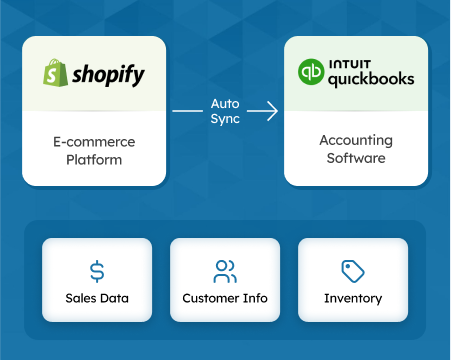
Shopify and QuickBooks Online don’t communicate natively. Without an integration, the only way to get Shopify data into QuickBooks is to export CSVs and import them manually — a process that’s slow, error-prone, and doesn’t scale past a few hundred monthly orders. This guide explains how the Shopify-QuickBooks integration works, what it syncs, how to configure it correctly, and what to watch for once it’s running.
TL;DR: Shopify doesn’t send data to QuickBooks automatically — a connector is required. SyncTools connects both platforms via OAuth in under 30 minutes, maps gross sales, fees, refunds, taxes, and payouts to the correct accounts, and keeps them in sync in real time or daily. No CSV exports, no manual entries.
Why Shopify Data Doesn’t Flow Into QuickBooks Automatically
Shopify tracks orders, inventory, and customer data. QuickBooks tracks financial transactions in a double-entry accounting system. The two platforms use completely different data models: a Shopify order is not a QuickBooks invoice, and a Shopify payout is not a QuickBooks deposit.
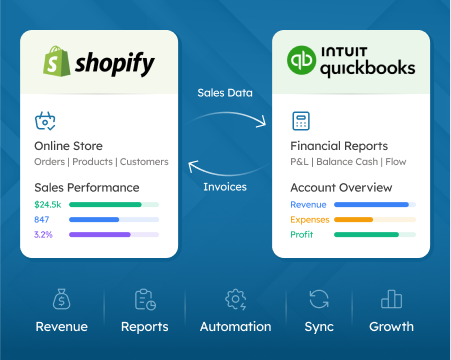
An integration layer — SyncTools — translates between these models. When a Shopify order is placed, SyncTools reads the transaction and posts corresponding QuickBooks entries: a sales receipt or invoice for the order revenue, a separate entry for Shopify Payments fees deducted, another entry for sales tax collected, and a reconciling entry when the Shopify payout lands in your bank account.
Without this translation, sellers commonly make three critical accounting errors:
- Recording net payouts as gross revenue. Shopify deposits a net amount after deducting fees. If you post that deposit as income, you’re understating revenue and hiding fee expenses on your P&L.
- Including sales tax in income. Tax collected on behalf of customers is a liability you owe to the government — not income. Recording it as revenue overstates your taxable income.
- Missing refund accounting. Shopify refunds appear as negative amounts in payouts, but they need to post as credit memos or sales returns in QuickBooks to correctly reduce revenue without distorting invoice records.
What SyncTools Syncs Between Shopify and QuickBooks
SyncTools syncs every transaction type that affects your books:
| Shopify Transaction | QuickBooks Entry |
|---|---|
| Order (gross revenue) | Sales receipt or invoice |
| Shopify Payments fee | Payment processing expense |
| Refund | Credit memo or refund receipt |
| Sales tax collected | Sales Tax Payable (liability) |
| Shipping income | Shipping income account |
| Discount issued | Discount expense |
| COGS (product cost) | Cost of Goods Sold expense |
| Payout settlement | Bank deposit reconciliation |
Every line maps to a specific QuickBooks account based on your chart of accounts. SyncTools pre-populates sensible defaults, but you can override any mapping to match your existing account structure.
Account Mapping: Getting it Right the First Time
The most important configuration step is account mapping. Get this right during setup and your books will be accurate from day one; get it wrong and you’ll need to reclassify transactions manually later.
Recommended chart of accounts for Shopify sellers:
- Gross sales → a Sales or Product Revenue income account
- Shopify Payments fees → a Payment Processing Fees expense account (not subtracted from revenue)
- Shipping income → a Shipping Income account (or your existing delivery income account)
- Sales tax collected → Sales Tax Payable (a current liability, not income)
- Refunds → Sales Returns and Allowances (a contra-revenue account)
- COGS → Cost of Goods Sold (an expense account)
- Payout settlement → your business checking account
For Shopify sellers using Shopify Payments, the tax mapping is particularly important: Shopify collects marketplace facilitator tax in many US states, meaning you’re never liable for that tax and it should not appear on your income statement at all. For a complete breakdown, see the Shopify sales tax in QuickBooks guide.
Sync Modes: Real-Time vs. Daily Summary
SyncTools supports two sync modes. The right choice depends on your order volume and how your accountant wants to review transactions.
Real-time sync — Each Shopify transaction posts to QuickBooks within minutes. Your QuickBooks file always reflects the latest Shopify activity. Useful for stores that want per-transaction audit trails or that reconcile frequently during the month.
Daily summary sync — One journal entry per day totals all Shopify activity for that day: gross sales, fees, refunds, tax. This is cleaner for high-volume stores (200+ orders/day) where posting thousands of individual transactions to QuickBooks creates noise without adding reconciliation value.
Both modes produce the same accounting outcome — the choice is purely about the level of detail in your QuickBooks records.
Payout Reconciliation
Shopify Payments deposits a single bank amount every 2–3 business days, covering all orders, minus all fees, refunds, and chargebacks settled during that period. This is one of the trickiest aspects of Shopify accounting because the bank deposit amount doesn’t directly correspond to any single day’s revenue.
SyncTools handles payout reconciliation by:
- Recording gross revenue as it occurs (at order time)
- Recording Shopify fees and refunds as they post
- Posting a reconciling deposit entry to your bank account that matches exactly what Shopify transfers
The result: your QuickBooks bank account clears against your actual bank statements with no unexplained differences. For a step-by-step walkthrough, see the Shopify payout reconciliation in QuickBooks guide.
Multi-Store Configuration
SyncTools supports multiple Shopify stores connected to a single QuickBooks Online company file. Each store posts to a separate set of income accounts, so you can compare performance by channel directly in your QuickBooks P&L without needing separate entity files.
This is useful for sellers who run different brands on separate Shopify stores but want consolidated financial reporting in one QuickBooks account.
Setting Up the Integration
- Create your SyncTools account at app.synctools.ai — no credit card required for the free trial.
- Connect Shopify via OAuth. SyncTools requests read access to orders, products, payouts, and refunds.
- Connect QuickBooks Online via OAuth. SyncTools reads your chart of accounts and pre-populates account mapping defaults.
- Review account mapping — confirm gross sales, fees, refunds, tax, and COGS map to the right accounts. Adjust any defaults that don’t match your chart of accounts.
- Choose sync mode — real-time for per-transaction detail, daily summary for high volume.
- Run your first sync and verify the QuickBooks entries against your Shopify dashboard. If the totals match, activate ongoing sync.
For the complete step-by-step instructions including screenshots, see the Shopify QuickBooks Online setup guide.
Common Mistakes to Avoid
Don’t record Shopify payouts as income. The payout is a net settlement amount — recording it as revenue understates your gross sales and hides fee expenses.
Don’t skip the tax mapping. If Shopify collects marketplace facilitator tax in your state, that amount must post to a liability account, not income.
Don’t ignore refund handling. Refunds processed through Shopify Payments are deducted from future payouts, not immediately returned to your bank. Configure SyncTools to post refunds as credit memos at the time of the refund, not when the payout adjusts.
Don’t compare SyncTools entries to Shopify gross sales totals without adjusting for fees. Your QuickBooks gross revenue should match Shopify’s gross sales; your QuickBooks bank deposit should match Shopify’s payout amount. These are different numbers by design.
Frequently Asked Questions
How do I integrate Shopify with QuickBooks?
You can integrate Shopify with QuickBooks using SyncTools. Connect your Shopify store and QuickBooks Online account via OAuth, map your transaction types to the correct accounts, and SyncTools will automatically sync sales, fees, refunds, and taxes on a schedule you define.
Does SyncTools support real-time sync between Shopify and QuickBooks?
Yes. SyncTools supports both real-time and scheduled (daily) sync modes. Real-time mode posts each Shopify transaction to QuickBooks within minutes of it occurring.
Can SyncTools handle multiple Shopify stores in one QuickBooks account?
Yes. SyncTools supports multi-store configurations, posting transactions from each Shopify store to separate income accounts in QuickBooks so you can track channel performance independently.
What Shopify data does SyncTools sync to QuickBooks?
SyncTools syncs Shopify sales, refunds, discounts, shipping charges, sales tax collected, and Shopify Payments fees — each mapped to the correct QuickBooks account automatically.
What are the main benefits of integrating Shopify with QuickBooks?
Integrating Shopify with QuickBooks eliminates manual data entry, prevents revenue misstatement from recording net payouts as gross income, and gives you an accurate P&L that includes every Shopify fee, refund, and tax line. Sellers using SyncTools typically reduce monthly bookkeeping time by several hours and eliminate end-of-month reconciliation errors caused by payout timing differences.
How often does SyncTools sync data between Shopify and QuickBooks?
SyncTools supports two sync modes: real-time (each Shopify transaction posts to QuickBooks within minutes) and daily summary (one journal entry per day totaling all Shopify activity for that day). Real-time is useful for stores that need per-transaction detail in QuickBooks. Daily summary is preferable for high-volume stores processing hundreds of orders per day.
What happens if Shopify and QuickBooks go out of sync?
If SyncTools encounters an error during sync — such as a missing account mapping or a QuickBooks authentication timeout — it logs the failed transactions and retries automatically. You can also manually trigger a re-sync for any date range from the SyncTools dashboard. Transactions that fail to post are flagged in the SyncTools error log so nothing is silently missed.
For a detailed step-by-step walkthrough including account mapping, fee handling, and reconciliation tips, see our complete Shopify QuickBooks Integration guide.
See the integration page
Shopify QuickBooks Online Connector
Ready to automate your accounting?
Connect Shopify, WooCommerce, or Linnworks to QuickBooks, Xero & more. Setup in minutes.